
My Preferences
Package: BASIC
1. General
In "My Preferences", each user can configure individual settings for their user account. In addition to the user's personal information, settings for general user preferences and Integrations can also be saved.
For how to open "My Preferences", refer to the section Opening the user menu.
2. Editing My Preferences
To edit the settings, click the "Edit" button in the top right-hand corner.
To save all changes, finally click the "Save" button. If no changes are to be saved, you can click the "Cancel" button.
To edit only individual settings, the relevant fields can also be edited with a double-click. In this case, the save process is triggered by clicking outside the field being edited.
The individual settings are described in detail on the following sub-pages:
3. Changing the Password
To change the password, click the "Change password" button at the top right. The "Change password" popup opens:
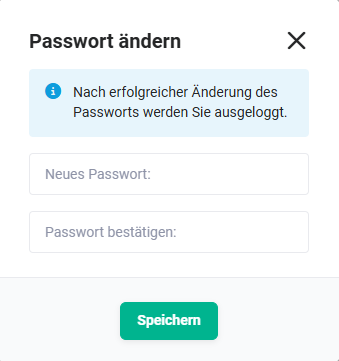 "Change password" popup
Enter the new password in the "New password" input field and confirm it in the "Confirm password" input field.
Finally, click "Save" to save the new password in the system.
After the password has been changed successfully, the user is logged out.
4. Notes for Administrators
brainX users with administrator rights can configure settings in the Global Settings under Users and groups either when creating new users or when editing settings for existing users. This also includes another user's password: it is entered directly in the user's edit view in the "Password" and "Confirm password" fields and applied via the "Save" button (see section Users and groups - Editing a user).
Access to "My Preferences" is generally always possible for all users and cannot be blocked by rights settings.
5. Frequently Asked Questions
I have forgotten my password. How do I get back in?
Your own password can only be changed via "My Preferences" while you are logged in. Anyone who is locked out should contact a user with administrator rights: they enter a new password under Global Settings → Users and groups in the user's edit view.
Why am I logged out after changing my password?
This is intentional. After the change has been made successfully, the session is ended; you then log in with the new password.
How does changing your own password differ from a change made by the administrator?
Your own password is set via the "Change password" button in a separate popup. The administrator, on the other hand, enters it directly in the user's edit view in the "Password" and "Confirm password" fields. Two different ways with the same result.
Can the administrator revoke my access to "My Preferences"?
No. Access is generally always possible for all users and cannot be blocked by rights settings.
Where do I set the language, time zone and date format?
The language is found in the User settings. Time zone, date format, hour format, currency as well as the decimal and grouping separators, on the other hand, are located in the basic settings.
Where do I activate two-factor authentication?
In the user settings in the Account section. A WebAuthn key can also be stored there.
Do I have to edit the entire page to change a single entry?
No. In addition to the "Edit" button for all fields, each field can also be edited individually via a double-click; it is saved by clicking outside the field.