
Digital Signature
Package: SALES BILLING PROJECTS
1. General
Digital signatures optimise contract closings. Customers, partners and vendors are offered the possibility to sign conveniently in digital form on any device in order to increase the efficiency of business processes.
Advantages of the digital signature:
- Business process optimisation: Digital signatures can be integrated seamlessly into existing business processes and enable a more efficient and automated workflow control.
- Sustainability: Doing without paper reduces resource consumption and contributes to environmental protection.
- Effective document management: Digital signatures enable efficient organisation and archiving of documents, as they are less susceptible to damage or loss.
- Legal certainty: Digital signatures are legally binding and can serve as evidence in court.
- Security and integrity: Digital signatures offer a high level of security through encryption and authentication procedures, thereby ensuring the integrity of the document.
- Improved collaboration: Digital signatures enable smooth collaboration between different parties, regardless of their location.
In brainX you can choose between two providers/software solutions in order to be able to use the digital signature:
- DocuSign → established market leader with a broad range of functions, used by many companies worldwide
- DocuSeal → an open-source alternative that can be self-hosted and is known for its ease of use and user-friendliness
DocuSign and DocuSeal are both software solutions for electronic signatures that allow users to sign and manage documents online.
The range of functions and the operation within brainX are almost identical here.
2. DocuSign
The prerequisite for using the DocuSign integration is an active, fully-fledged account at DocuSign.
A trial/test account at DocuSign is not sufficient!
The DocuSign integration enables the use of a digital signature in PDF files that are generated by means of PDF Templates.
The DocuSign integration can be used in all modules in which a PDF export is possible. In particular, the modules Sales Orders, Deals, Documents, Credits, Invoices, Cancellations and Contracts (only in the CRM version “brainX.app”) are ideally suited for the use of a digital signature.
2.1. Configuring DocuSign
2.1.1. Authentication
If several Organizations exist and the Digital Signature is to be used in several or all Organizations, the authentication must be carried out per Organization!
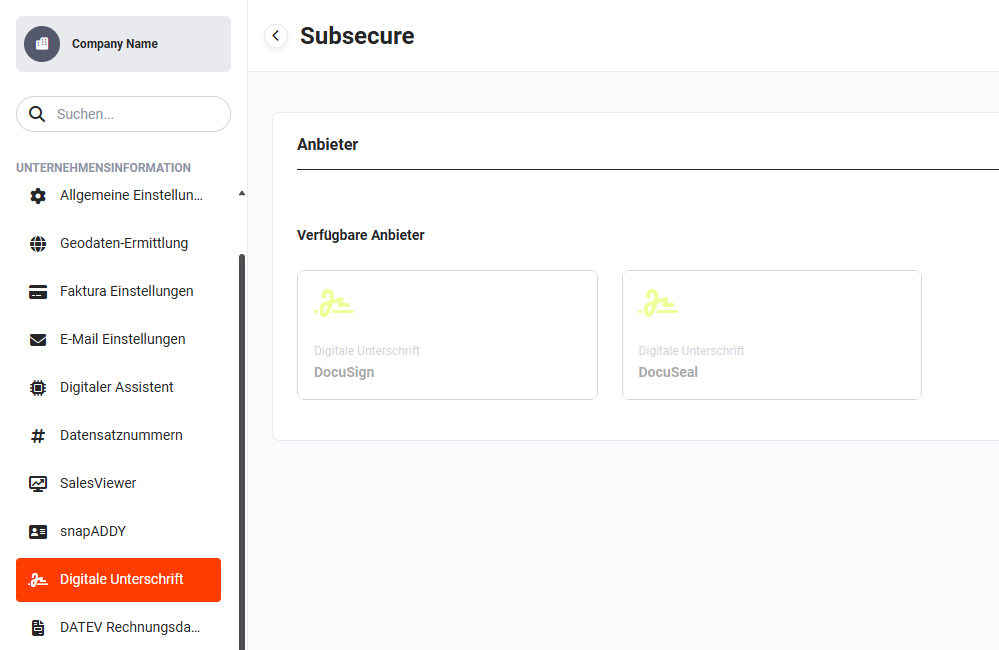 Digital Signature - available providers
After clicking the “DocuSign” tile, a note is displayed indicating that you will now be redirected to the corresponding service.
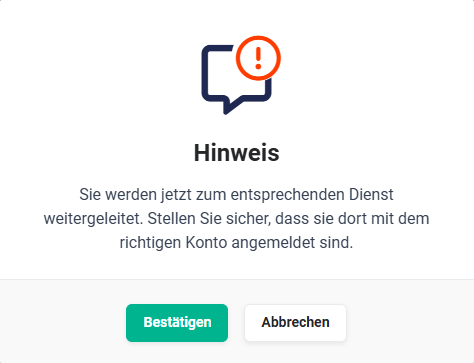 Note redirection
After clicking the “Confirm” button, a new browser window opens with the DocuSign login page.
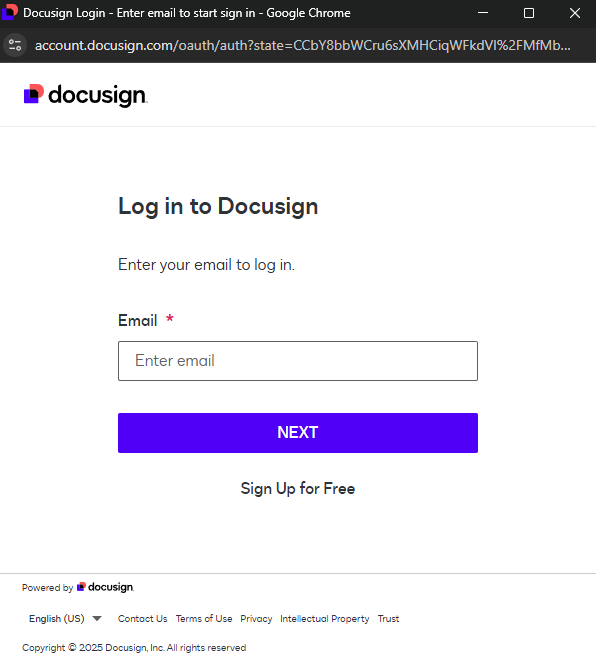 DocuSign login
Should the browser window be closed accidentally, the “DocuSign Authentication” popup is displayed in brainX, by means of which a renewed sign-in to DocuSign is possible.
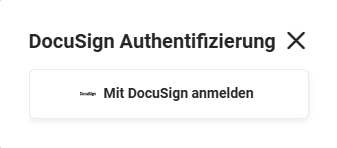 Popup DocuSign Authentication
After a successful login, the “DocuSign” integration is authenticated. Authentication takes place by means of OAuth (token-based authorisation and authentication)!
After clicking the “DocuSign” tile, the “Configure provider” popup opens:
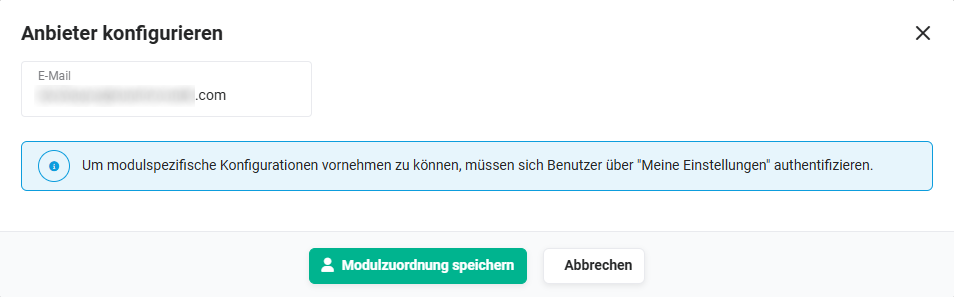 Popup Configure provider
In the popup, the email address of the account that was used for authentication is displayed.
In order to be able to make module-specific configurations, users must authenticate via My Preferences.
Once one or more users have authenticated, a module assignment can be made in the “Configure provider” popup, in order to optionally assign the DocuSign templates module by module to specific users (see section Module assignment).
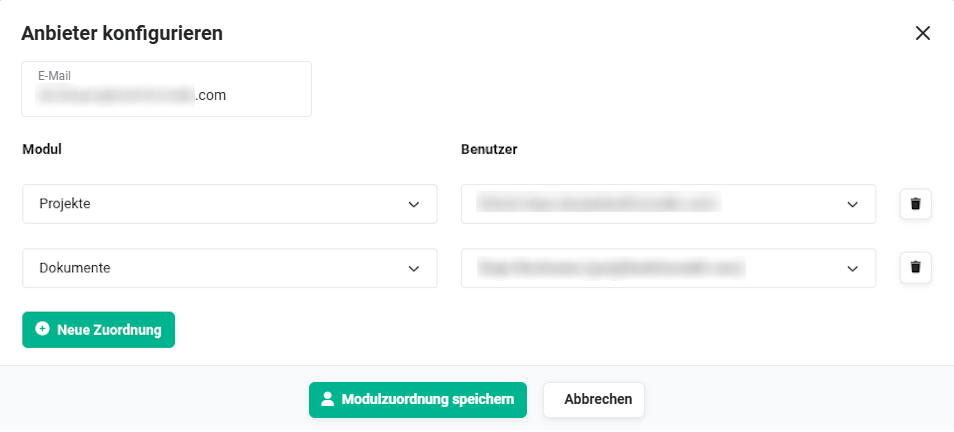 Popup Configure provider - module assignment
2.1.1.1. User authentication
brainX users who wish to send an envelope for digital signature out of brainX do not require any additional authentication!
However, further authentications by brainX users are possible in order to optionally assign the DocuSign templates module by module to specific users. For further information, see section Module assignment.
In My Preferences - Integrations tab, users can authenticate at DocuSign.
After clicking the “DocuSign” tile in the “Available integrations” area, a note is displayed indicating that you will now be redirected to the corresponding service.
After clicking the “Confirm” button in the note popup, a new browser window opens with the DocuSign login page. After a successful login, the user is authenticated and the “DocuSign” tile is now located in the “Active integrations” area.
After clicking the “DocuSign” tile again, the “DocuSign” popup is displayed.
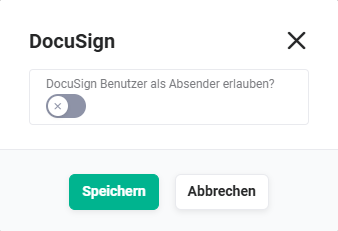 Popup Allow DocuSign user as sender
Once the switch has been set to “active” and the “Save” button has been clicked, the user can be selected in the Module assignment among the users.
2.1.1.2. Checking and renewing authentication
After successful authentication, two additional buttons are available in the DocuSign tile:
- Check authentication -> checks whether the stored authentication is still valid, and displays the result of the check.
- Renew authentication -> carries out the authentication process again, analogous to the initial setup. This is required, for example, in the case of expired or invalidated tokens.
2.1.1.3. Cancelling authentication
To cancel the authentication, or to deactivate the integration, the “X” action icon that is displayed on mouseover must be clicked in the “Digital Signature - DocuSign” tile.
After clicking the action icon, a popup is displayed in which the deactivation of the integration must be confirmed.
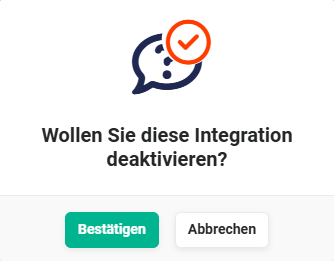 Popup Deactivate integration
2.1.2. Module assignment
brainX users who wish to send an envelope for digital signature out of brainX generally do not require any additional or own authentication. However, should users additionally authenticate, this offers the possibility to assign these users to selected modules.
In detail, this means: If a user has authenticated via DocuSign in the user settings (see User authentication) and has set the switch “Allow DocuSign user as sender?” to “active”, then this user can be selected in the settings and assigned to a module.
Only users who have authenticated at DocuSign are available for selection in the module assignment!
For the authentication of users in “My Preferences”, a different DocuSign account must be used than in “Company information - Digital Signature - DocuSign”.
After clicking the “New assignment” button, a row with the picklists “Module” and “User” is displayed.
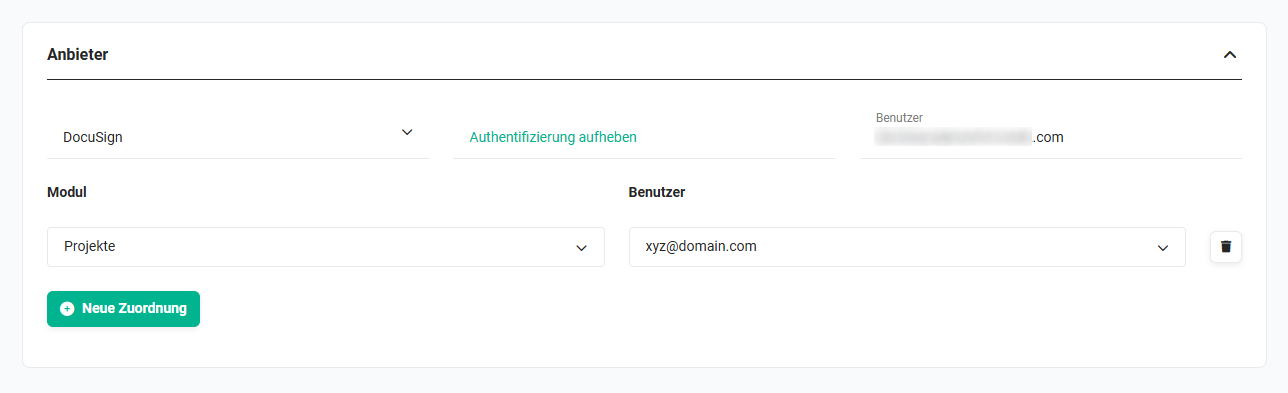 Example module assignment DocuSign
In the “Module” picklist, all modules in which a PDF export is possible are available.
In the “User” picklist, all users who have authenticated at DocuSign are available.
By clicking the “New assignment” button again, further modules/users can be configured.
Once the module assignment has been carried out, the “Save” button must finally be clicked in order to apply the changes.
If DocuSign envelopes are now sent from the selected modules, then - regardless of which user triggers the sending (see also the section Creation and sending) - the configured users/email addresses are always used.
Should one of the assigned (user) accounts not function for technical reasons (the user has, for example, cancelled the authentication, set the switch “Allow DocuSign user as sender?” to “inactive”, or no connection to this DocuSign account can be established), then the “Default account” that was initially used for authentication serves as the fallback.
2.1.3. Email template
With the activation of the “DocuSign” integration, the email template “DocuSign signature request” is activated, which contains a standard text (subject) that is used in the email when sending a PDF file (envelope).
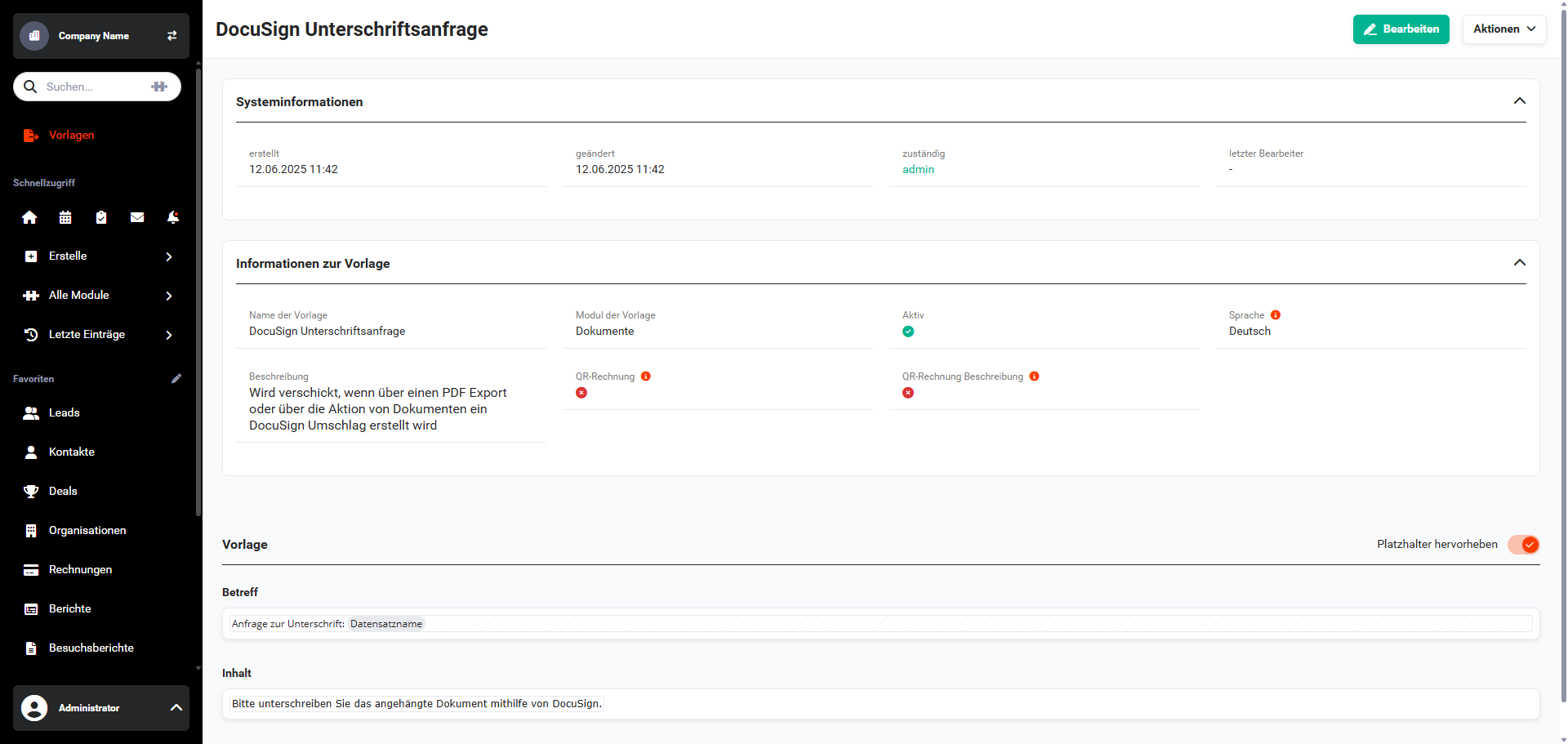 Templates module - DocuSign signature request
Upon delivery, the subject in the template is structured as follows:
Signature request: Datensatzname
The placeholder Datensatzname here stands for the title of the document and is correspondingly replaced by the respective title of the document upon generation of the PDF file.
The subject can be edited - as with all templates. It should be noted here that the preselected module “Documents” in the template must not be changed.
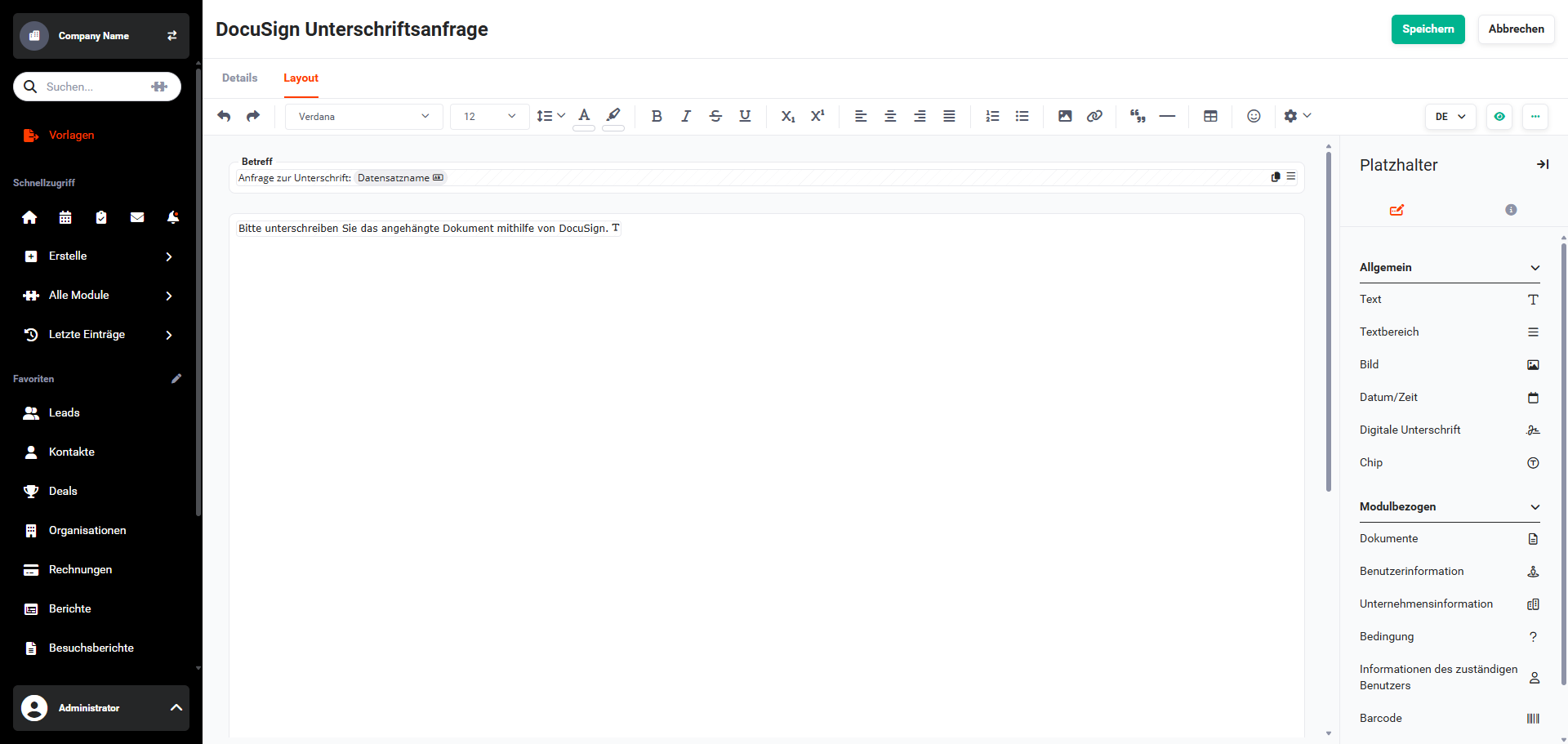 Templates module - edit DocuSign signature request
For general information on PDF templates, see section PDF Templates.
2.2. Using DocuSign
2.2.1. General
In principle, the “DocuSign” integration enables the generation of a PDF file directly from a record from the modules Sales Orders, Deals, Documents, Credits, Invoices, Cancellations and Contracts, which is then sent as a so-called “envelope” directly by email to the customers.
In DocuSign eSignature, an envelope consists of the documents that you send for signing, as well as the recipient information and other details that you associate with the document.
The PDF file generated in brainX is sent as an “envelope” by email and can then be signed digitally by the customer. Before sending the envelope, it is determined whether one or more recipients are to receive the envelope (the PDF file) and which recipients must sign or are to receive a copy.
As the PDF template, any existing template of the respective modules can be used, or further PDF templates are created that contain the special placeholder “Signature”.
The difference then lies merely in the process of how the PDF file is signed digitally. For this, see also the section Sign documents digitally.
2.2.2. PDF Templates
With the activation of the “DocuSign” integration, the placeholder “Digital Signature” is available in the editing mode of PDF templates.
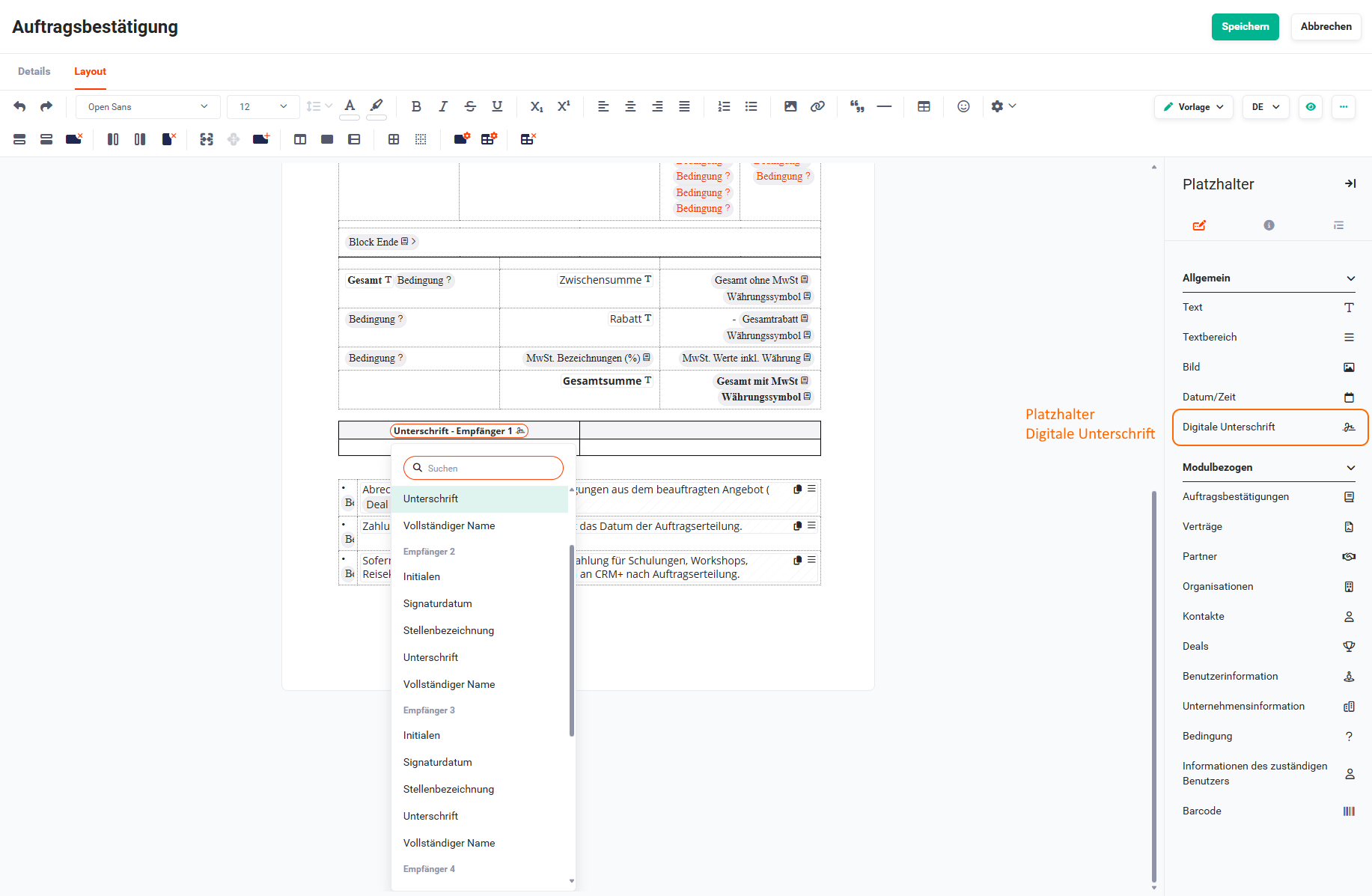 PDF template - Digital Signature placeholder
After inserting the “Digital Signature” placeholder into a PDF template, you can choose between the following placeholders via a flyout menu - which opens after clicking the placeholder:
Each of the placeholders is available for up to five recipients.
In addition, the following placeholder is also of significance:
- Checkbox (for optional line items for signature)
2.2.2.1. Initials placeholder
If a PDF template contains the “Initials” placeholder and this file is opened by the customer after sending, a corresponding “Initials” symbol is displayed in the file.
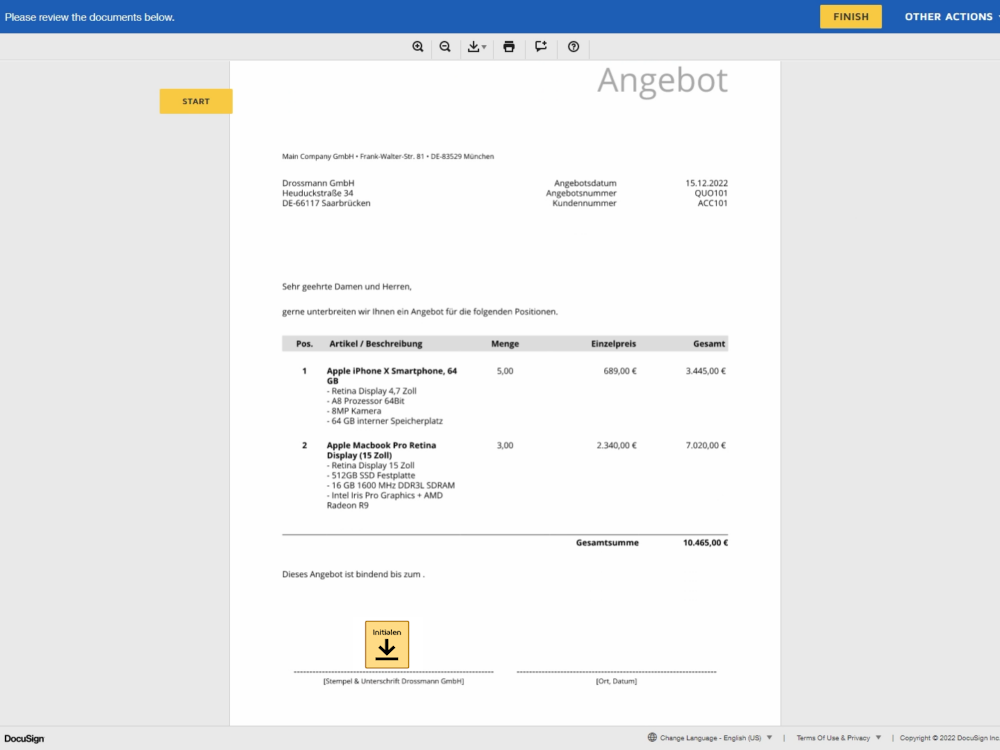 DocuSign Initials
One - or several - “Initials” placeholders as well as other placeholders can be inserted into a PDF template. This depends on how many people are to sign the document digitally.
For this, see also the section Create PDF file/envelope with DocuSign PDF template.
If no “Initials” placeholder has been inserted into a PDF template, a sent DocuSign envelope can likewise be digitally provided with initials. For this, see also the section Create PDF file/envelope without DocuSign PDF template.
2.2.2.2. Signature date placeholder
If a PDF template contains the “Signature date” placeholder and this file is opened by the customer after sending, a corresponding “Signature date” symbol is displayed in the file.
One - or several - “Signature date” placeholders as well as other placeholders can be inserted into a PDF template. This depends on how many people are to sign the document digitally.
For this, see also the section Create PDF file/envelope with DocuSign PDF template.
If no “Signature date” placeholder has been inserted into a PDF template, a sent DocuSign envelope can likewise be digitally provided with a signature date. For this, see also the section Create PDF file/envelope without DocuSign PDF template.
2.2.2.3. Job title placeholder
If a PDF template contains the “Job title” placeholder and this file is opened by the customer after sending, a corresponding “Job title” symbol (“Job description”) is displayed in the file.
One - or several - “Job title” placeholders as well as other placeholders can be inserted into a PDF template. This depends on how many people are to sign the document digitally.
For this, see also the section Create PDF file/envelope with DocuSign PDF template.
If no “Job title” placeholder has been inserted into a PDF template, a sent DocuSign envelope can likewise be digitally provided with a job title. For this, see also the section Create PDF file/envelope without DocuSign PDF template.
2.2.2.4. Signature placeholder
If a PDF template contains the “Signature” placeholder and this file is opened by the customer after sending, a corresponding “Sign” symbol is displayed in the file.
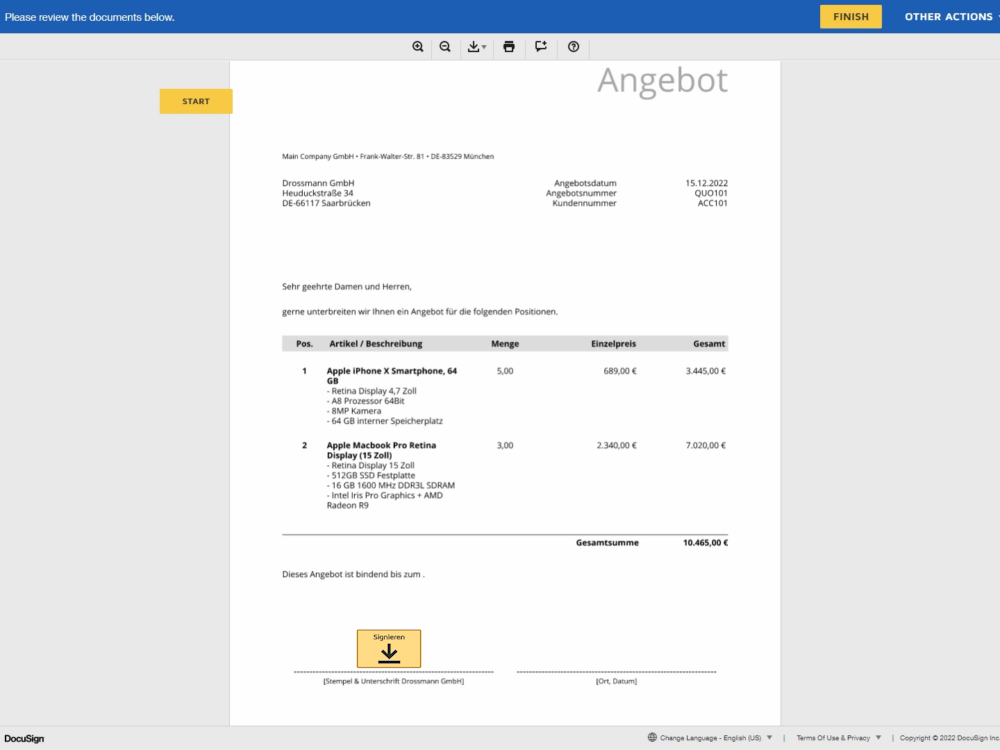 DocuSign Signature/Sign
One - or several - “Signature” placeholders as well as other placeholders can be inserted into a PDF template. This depends on how many people are to sign the document digitally.
For this, see also the section Create PDF file/envelope with DocuSign PDF template.
If no “Signature” placeholder has been inserted into a PDF template, a sent DocuSign envelope can likewise be digitally provided with a signature. For this, see also the section Create PDF file/envelope without DocuSign PDF template.
2.2.2.5. Full name placeholder
If a PDF template contains the “Full name” placeholder and this file is opened by the customer after sending, a corresponding “Full name” symbol is displayed in the file.
One - or several - “Full name” placeholders as well as other placeholders can be inserted into a PDF template. This depends on how many people are to sign the document digitally.
For this, see also the section Create PDF file/envelope with DocuSign PDF template.
If no “Job title” placeholder has been inserted into a PDF template, a sent DocuSign envelope can likewise be digitally provided with a job title. For this, see also the section Create PDF file/envelope without DocuSign PDF template.
2.2.2.6. Checkbox placeholder
In order, for example, not to have to send a Deal with optional line items for signature several times, the placeholder “Order by digital signature” can be used. A customer can thus select which line items are to be accepted.
If the document contains selectable line items, the signer must tick at least one of them when signing - otherwise the envelope cannot be completed. If the document already contains a mandatory line item (not controlled via the “Order by digital signature” placeholder), this requirement is automatically fulfilled and all remaining optional line items continue to remain voluntary.
2.2.3. Creation and sending
2.2.3.1. Create PDF file/envelope
2.2.3.1.1. Create PDF file/envelope with DocuSign PDF template
In a record of the modules Sales Orders, Deals, Documents, Credits, Invoices, Cancellations or Contracts, for which an envelope is to be created, the action icon “PDF Export” must be clicked in the first step.
The “PDF Export” popup now opens. In addition to the standard selection fields and checkboxes (for this, see also the section PDF Templates) in the popup, the switch “Use for DocuSign envelope” is additionally available here.
If the switch is set to “active”, the “Email” button is hidden. For the “Export” button, only “Export as reference” is still available.
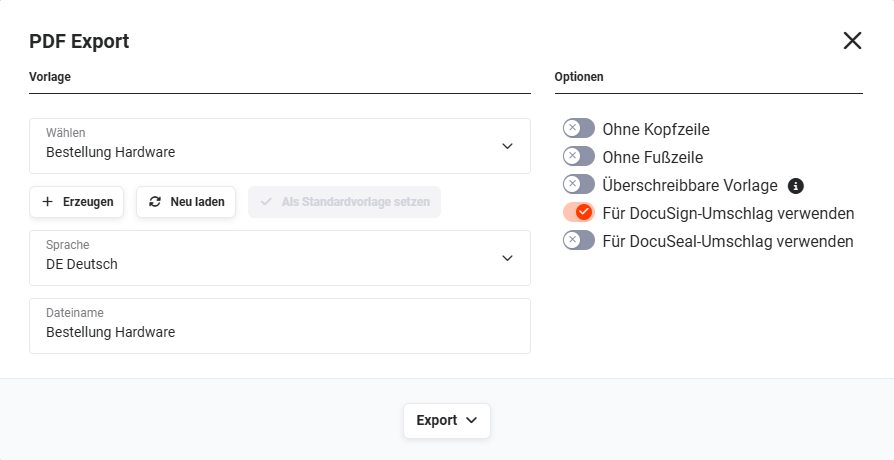 Popup PDF Export
After clicking the “Export as reference” action, the “Edit DocuSign envelope” popup opens.
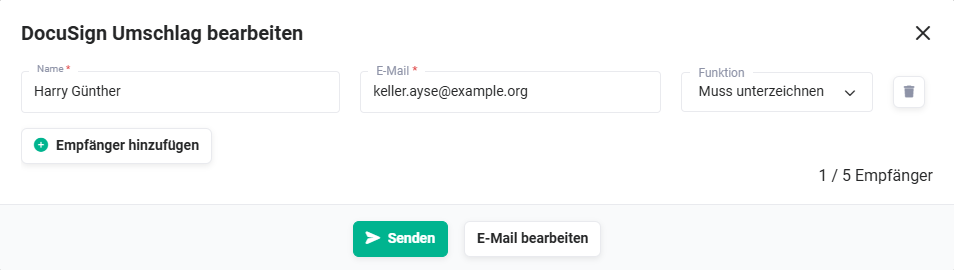 Popup Edit DocuSign envelope
Here, the Name and the email address of the recipient are displayed. The Name and the email address of the recipient are automatically filled if a corresponding record is referenced in the “Contact” field in the source record (e.g. Deal).
If no contact is referenced, the Name field must be filled manually. The Name field has autocompletion. If a part of a name is entered here, the matching hits are displayed and can be selected by clicking.
In the “Function” column, it can be determined by means of a picklist whether the recipient must sign the envelope or - in the case of several recipients - only receives a copy. The values “Must sign” or “Receives a copy” are available for selection here.
Further recipients can be added by means of the “Add recipient” button. The “Name” field has autocompletion. If a part of a name is entered here, the matching hits are displayed and can be selected by clicking.
In the lower part of the “Edit DocuSign envelope” popup, the buttons “Edit email” and “Send” are available.
- “Edit email” button: After clicking, the “Edit DocuSign envelope” popup opens, in which the email subject and the email message can be edited manually once again. For this, see also the section Email template.
- “Send” button: The DocuSign envelope is sent to the recipients by email. For this, see also the section Send PDF file/envelope.
Optionally, an expiry date for the envelope can be set before sending. Via the corresponding block in the popup, it can be determined by when the envelope can be signed digitally. For records from the Deals module, the field is preselected with the stored validity period of the deal. The expiry date is transmitted to both DocuSign and DocuSeal upon sending.
2.2.3.1.2. Create file/envelope without DocuSign PDF template
In order to be able to use an envelope without the placeholders “Signature” and “Initials”, the action “Create DocuSign envelope” must be clicked in the detail view of a record in the Documents module.
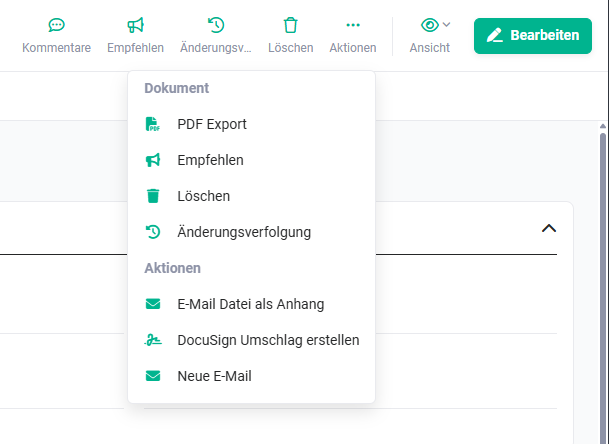 Documents module - action Create DocuSign envelope
After clicking the action, the “Edit DocuSign envelope” popup opens.
After clicking the “Send” button, the document is uploaded to DocuSign. The fields for the signature or the initials must now be inserted manually into the document.
Both fields can be inserted, or only the Signature or Initials field.
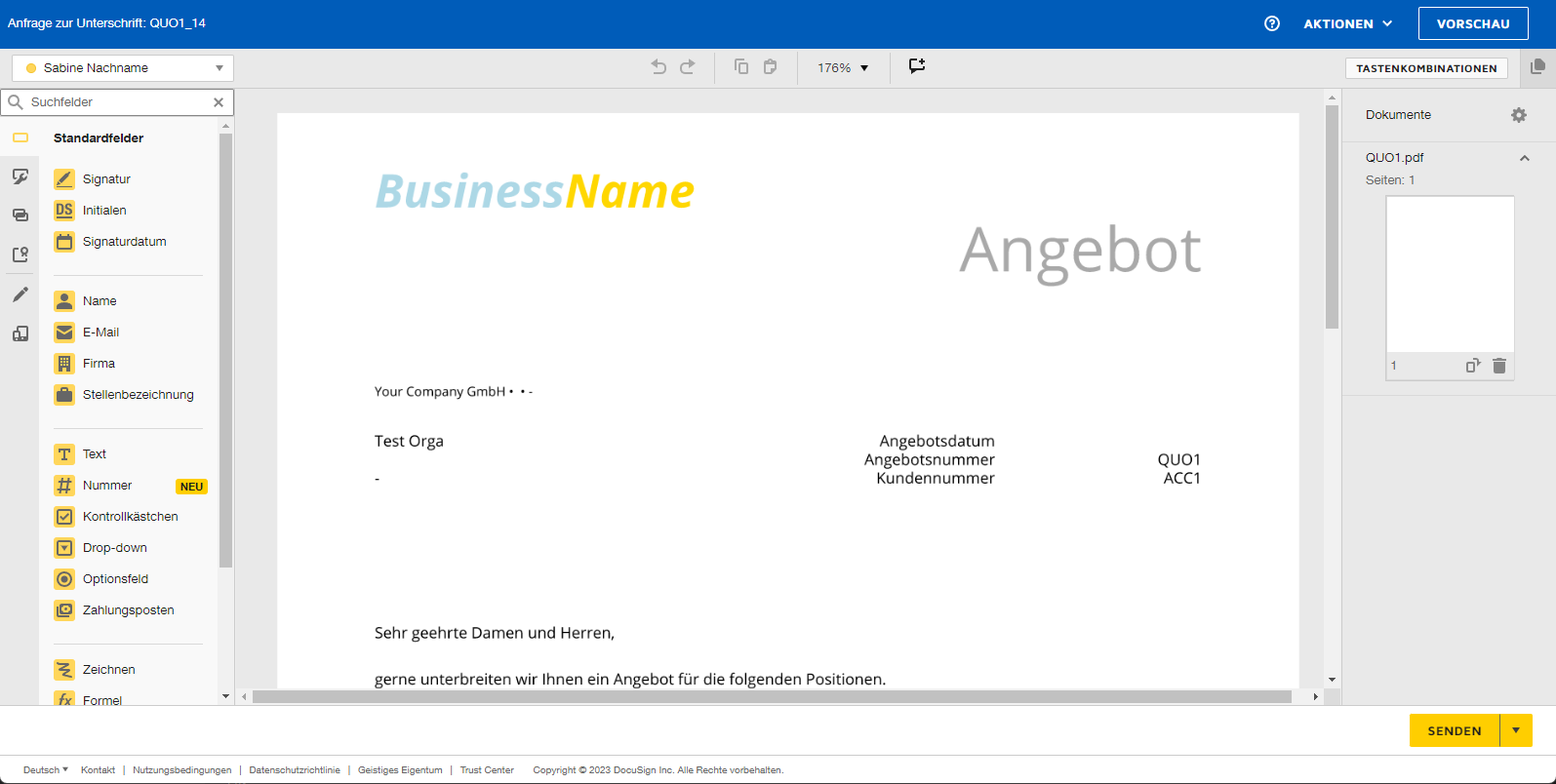 Editing template in DocuSign
The “Signature” and “Initials” fields are placed in the document by means of drag & drop. By way of example, the insertion of the “Signature” field is described below. The insertion of the “Initials” field works accordingly.
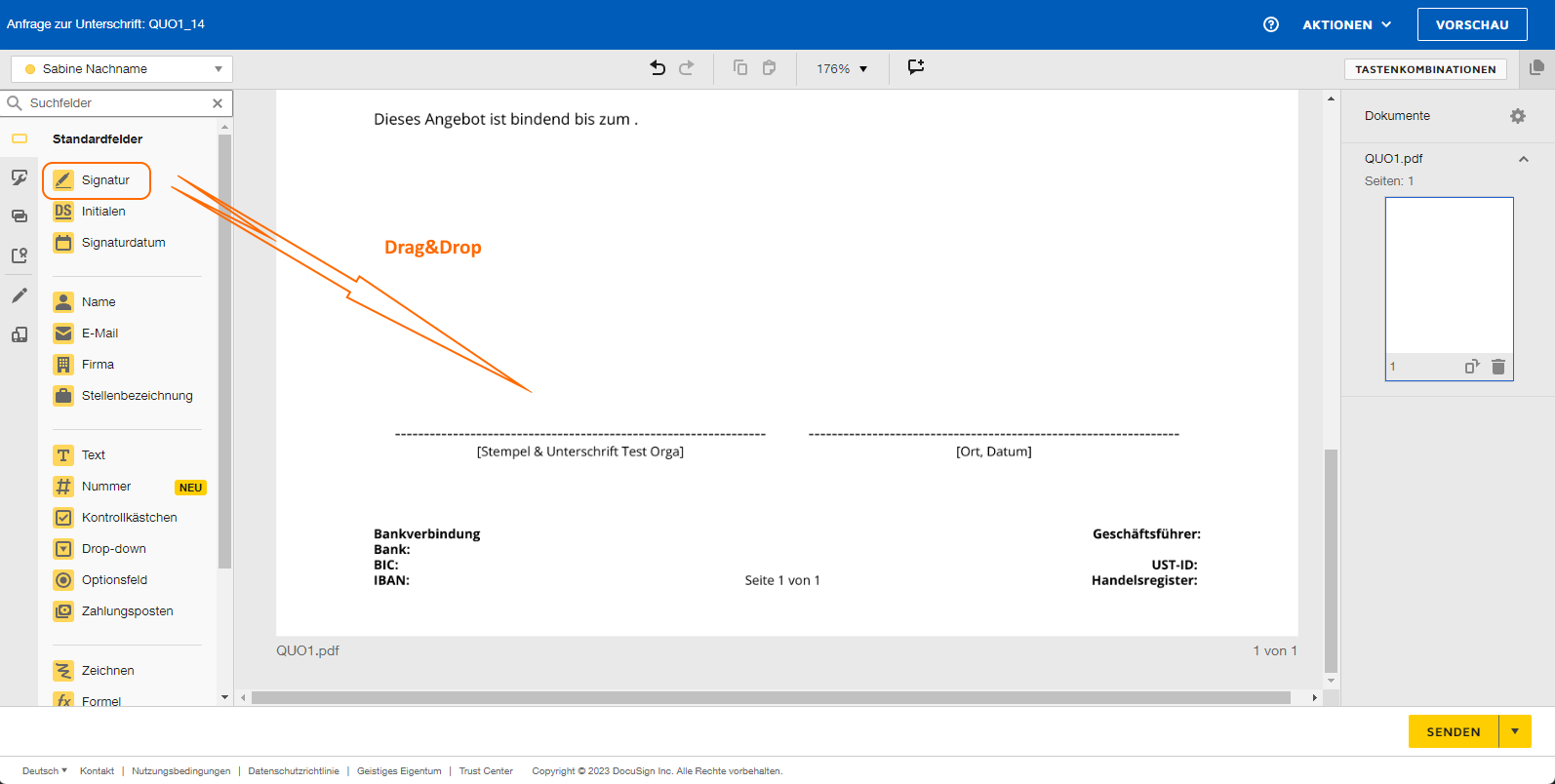 Insert signature via drag & drop
After inserting the “Signature” field, the document appears as follows:
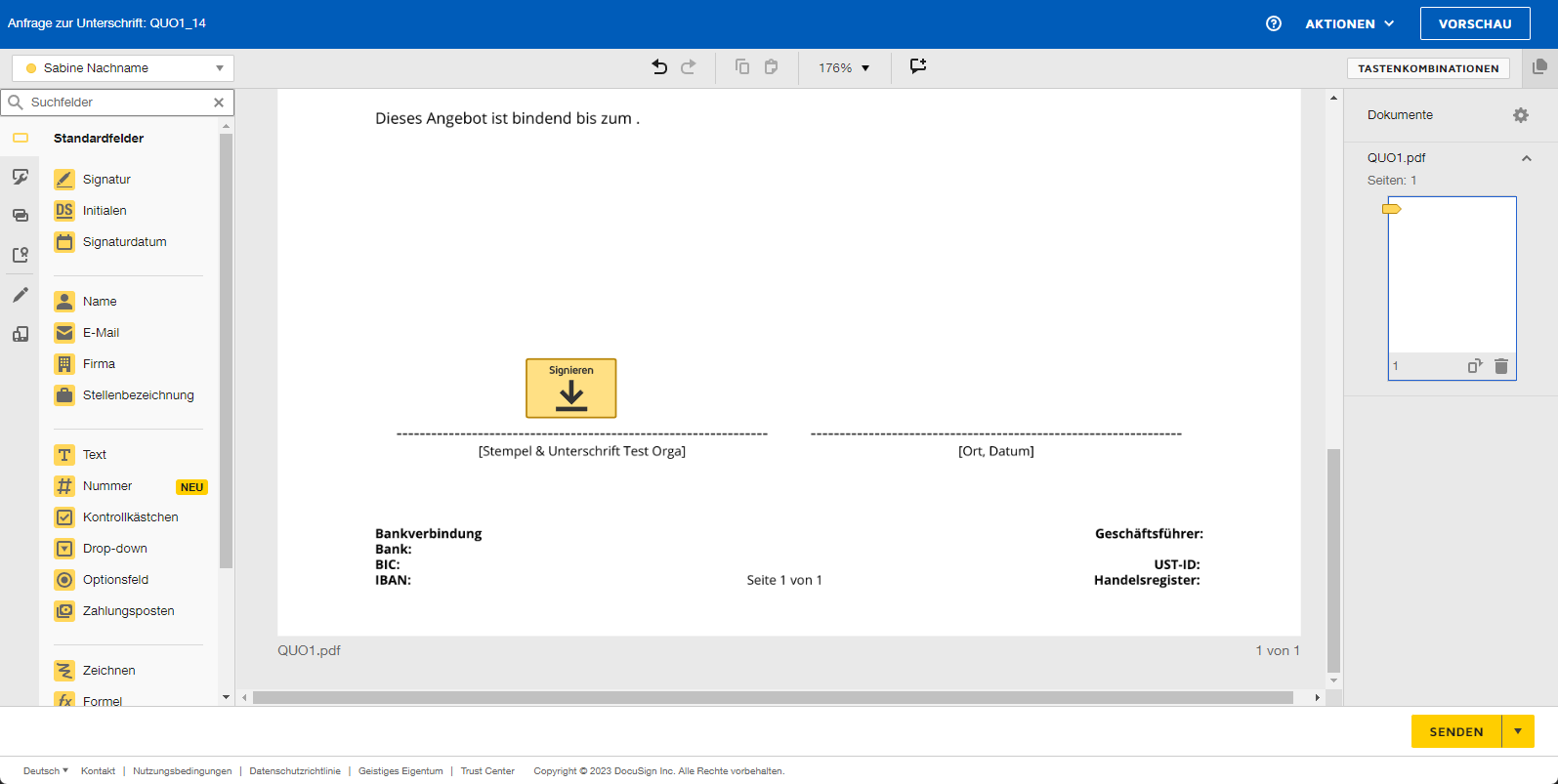 Template with inserted signature
Finally, the “Send” button must be clicked. The DocuSign envelope is now sent to the recipients by email. For this, see also the section Send PDF file/envelope.
2.2.3.2. Send PDF file/envelope
After clicking the “Send” button, the envelope is sent to the recipients by email. Subsequently, a corresponding note is displayed that informs whether the envelope was sent successfully or (in exceptional cases) could not be sent.
The email sending of the envelope to the recipients takes place via DocuSign! Neither the central mail server nor an email account of a brainX user is required!
After sending, the envelope generated in brainX (PDF file) is stored in the Documents module and is referenced in the source record (e.g. in a Deal) in the detail view in the Relations tab.
In the source record, the “DocuSign envelope” block is additionally available in the detail view. For this, see also the section Information in the "Information for digital signature" block.
2.2.3.3. Sign documents digitally
Recipients of a DocuSign envelope who are to sign a document digitally do not need to have an active account at DocuSign!
In this case, however, there is the restriction that the recipient cannot archive the DocuSign envelope at DocuSign itself.
After sending, the recipients receive an email for review and signature.
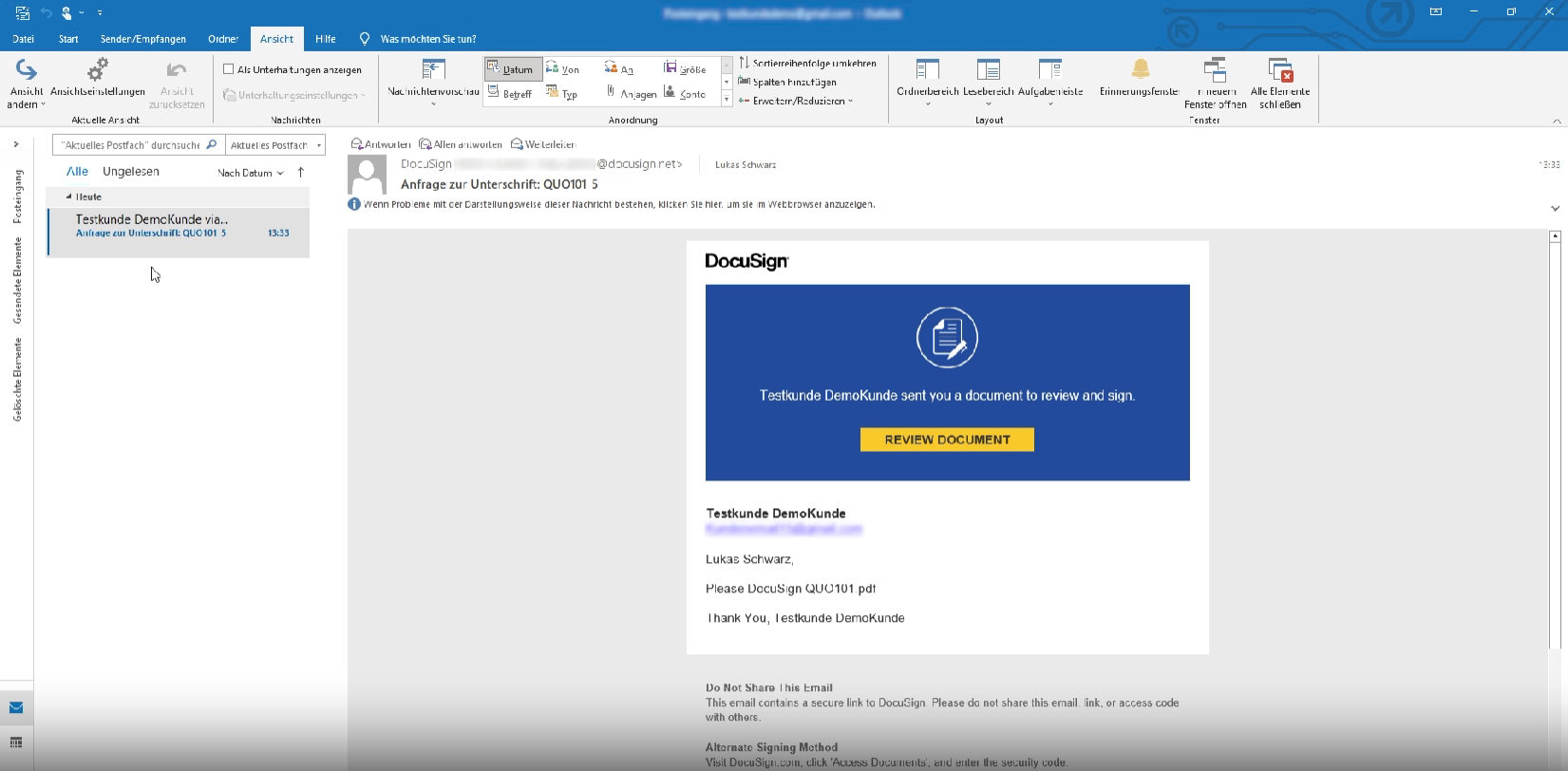 DocuSign email Review Document
After clicking the link in the email, the customer is redirected to DocuSign in order to review the document.
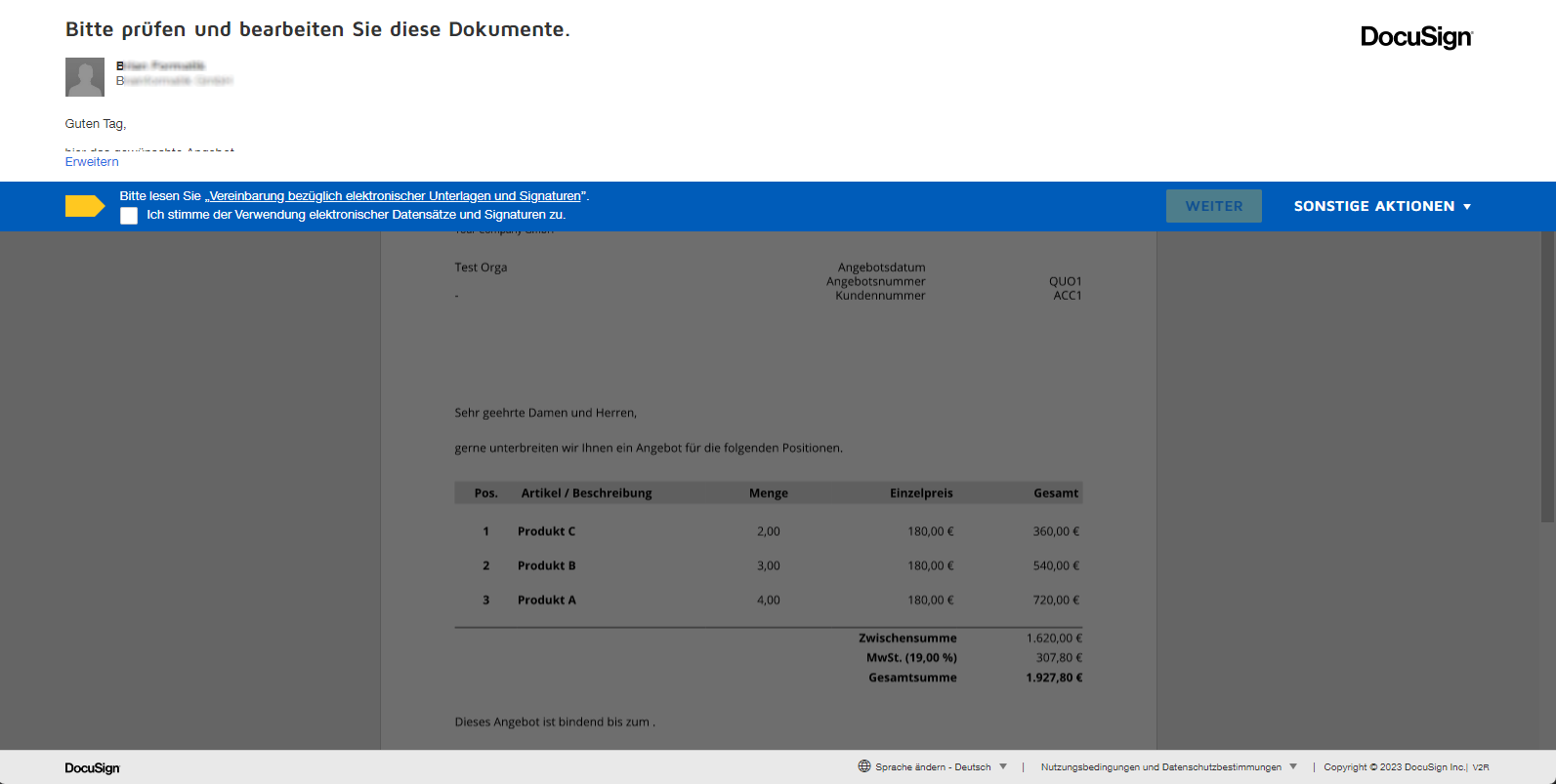 reviewing and editing the document
After agreeing to the use of electronic records and signatures, the document is ready to be signed digitally.
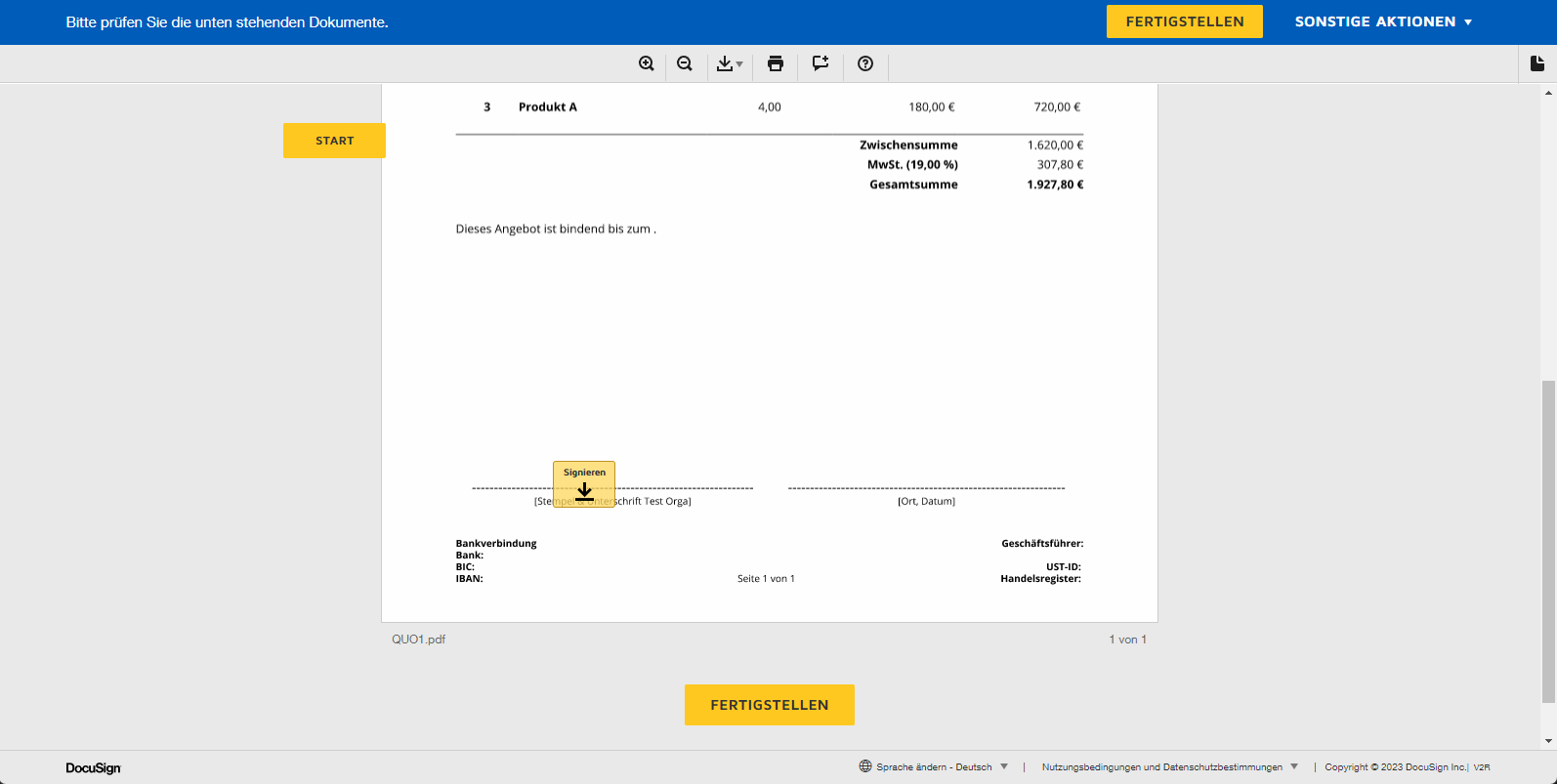 Placeholder sign document digitally
Finally, the document can be signed by clicking the placeholders “Sign” and/or “Initials”.
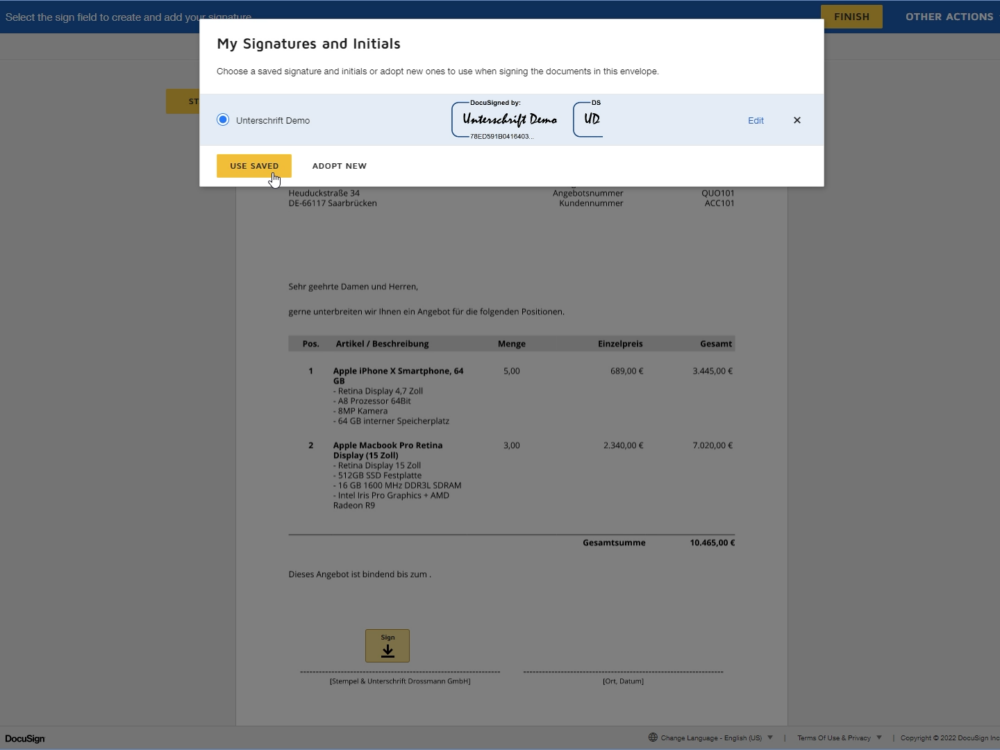 Sign document digitally
A signature, or the initials, can be set either by selecting a signature/the initials - which are generated by DocuSign - or by signing manually by means of a stylus/finger on a corresponding device (e.g. tablet or smartphone).
After the document has been signed digitally, a note is displayed indicating that the signing has been completed.
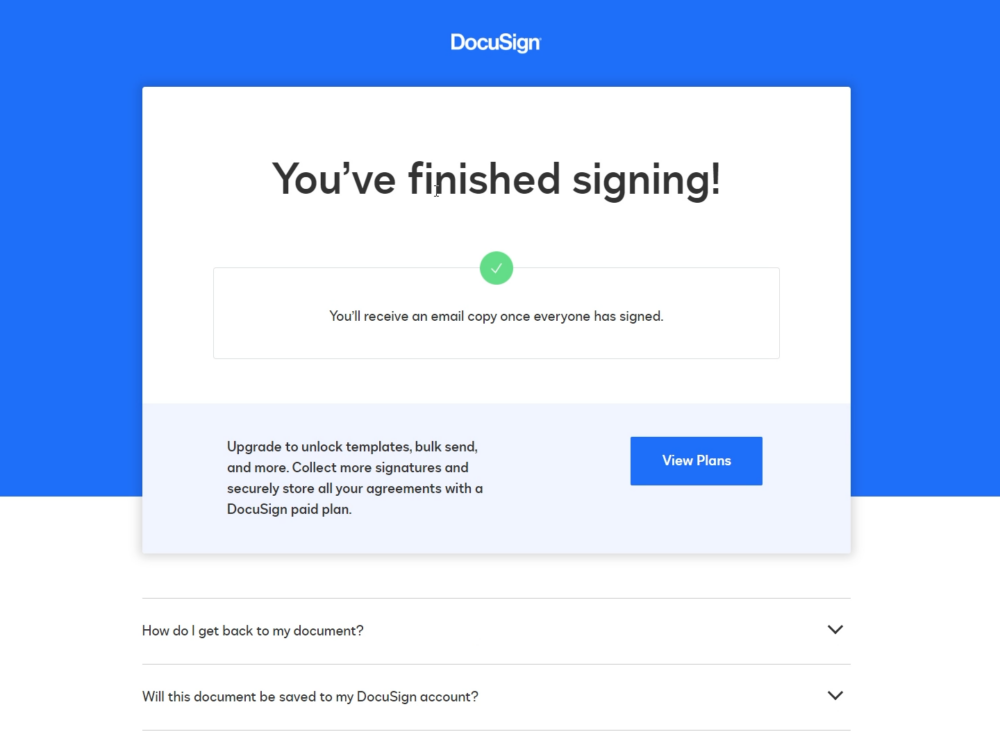 Note signing completed
The signing of a document can - for whatever reasons - also be declined. At DocuSign, a corresponding reason for the decline can be entered.
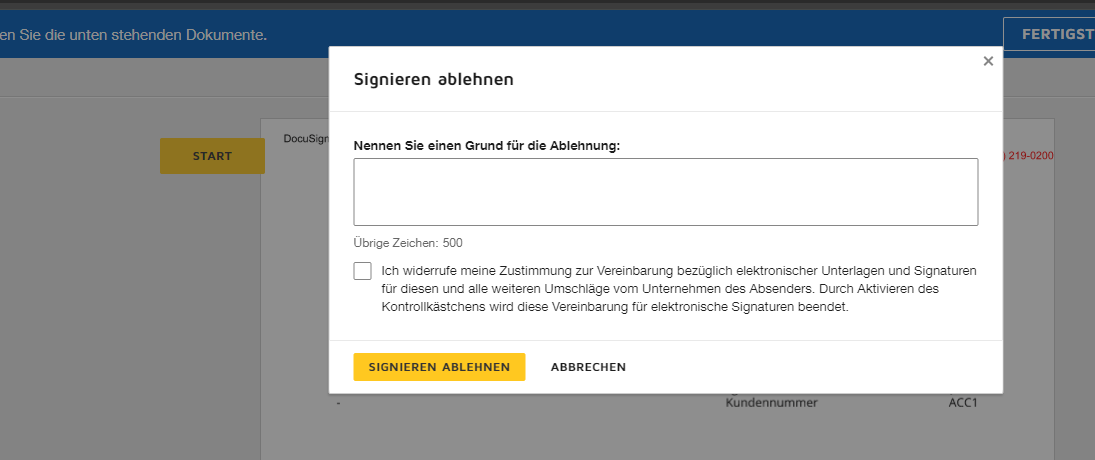 Decline signing
If the signing was declined and a reason was entered, this is displayed accordingly in the detail view of the record in the “DocuSign envelope” block in the “Reason for decline” field.
In addition to the notification, this event (viewing, signing or declining of the envelope) is also recorded as a separate entry in the change tracking of the associated record.
2.2.3.4. Information in notifications
If an envelope was viewed, signed or declined by the recipient, a corresponding notification is automatically displayed in brainX. This applies both to DocuSign and to DocuSeal.
2.2.3.5. Information in the “Envelope for digital signature” block
In the modules Sales Orders, Deals, Documents, Credits, Invoices, Cancellations, Contracts and Documents, various pieces of information about the DocuSign envelope are displayed in the detail view of a record in the “Envelope for digital signature” block.
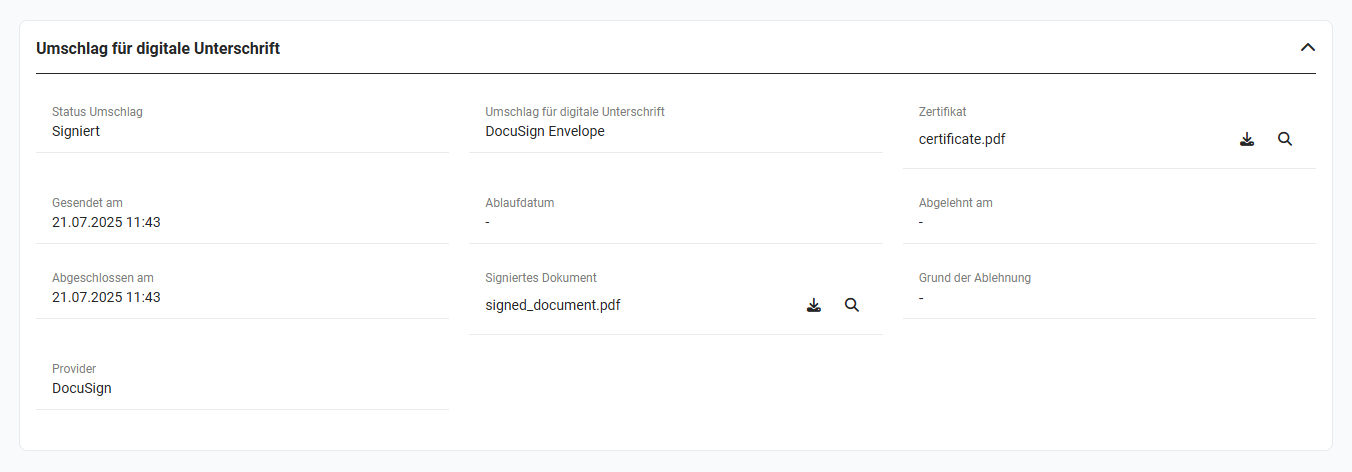 Block Envelope for digital signature
| Field | Description |
|---|---|
| Envelope status |
|
| Envelope for digital signature | Name of the envelope
After clicking the name, the “Envelope for digital signature” popup opens (see screenshot below), in which all recipients, their function (“Must sign” or “Receives a copy”) and the status are displayed. |
| Certificate | The field offers the possibility - provided the envelope was signed digitally - either to download the generated certificate (PDF file) (icon “Download”), or to view the certificate in the file preview in a separate popup (icons “magnifying glass”). |
| Sent on | Display of the date when the envelope was sent |
| Expiry date | Display of the expiry date up to which the envelope can be signed digitally. The date can be set manually when creating the envelope; for Deals, the stored validity period is preselected. If no date is set, the default value configured in the provider's account applies. |
| Declined on | If an envelope was declined by the recipient, the date on which the decline took place is displayed here. |
| Completed on | Display of the date when the envelope was signed digitally. |
| Signed document | The field offers the possibility - provided the envelope was signed digitally - either to download the generated document (PDF file) (icon “Download”), or to view the document in the file preview in a separate popup (icons “magnifying glass”). |
| Reason for decline | If an envelope - or the signing - was declined by the recipient and a reason for the decline was given, the reason why the decline took place is displayed here. |
| Provider | Display of the provider (DocuSign or DocuSeal) |
 Popup Envelope for digital signature
In Automations, conditions and the time delay of actions based on the fields of the “Envelope for digital signature” block are possible. In this, the most recently sent envelope of a record is always taken into account.
2.2.3.6. Automations
In interaction with the Digital Signature, there are two special features with the Automations:
2.2.3.6.1. Send PDF files/envelopes by means of an automation
PDF files/envelopes can be sent not only manually but also automatically by means of an Automation.
For each module for which an envelope is to be sent automatically, a separate trigger including a corresponding action must be created here.
In the “Frequency” setting item of an action, the option “Every time” must not be used for actions that send envelopes! Otherwise, unintended repetitions with regard to the sending of envelopes can occur with automations!
It is recommended to define fairly restrictive conditions in automations in order to avoid an unintended sending of an envelope. Example: In the “Deals” module, a new field “send envelope automatically” (type checkbox) is created by means of the Module management. If the checkbox is ticked when creating or editing the quotation and the record is saved, the envelope is sent automatically. Tip: Permissions for fields (visibility, read and write access or read access only) can be defined separately for the brainX users by means of the Profiles.
An action of an automation offers, in interaction with the digital signature, the possibility to use a linked PDF template as an envelope.
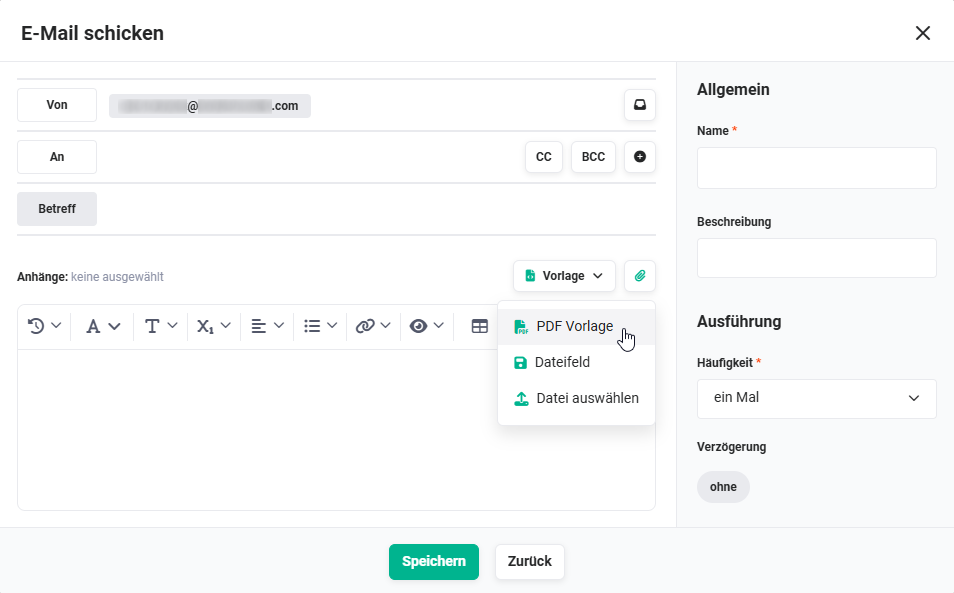 Action Send email - add attachment
After clicking the action icon “Add attachment”, a flyout menu opens, in which the item “PDF template” must be selected.
After clicking the “PDF template” item, the “Load template” popup opens.
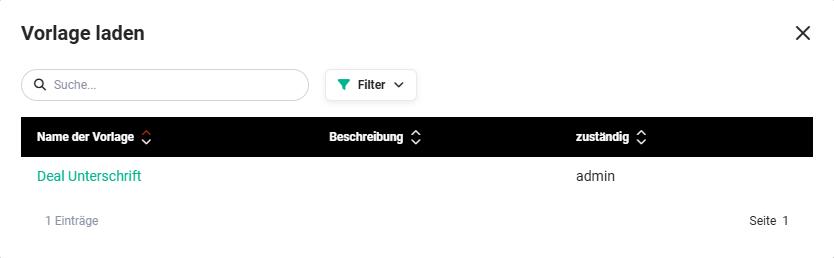 Popup Load template
Once a template has been selected by clicking, it is displayed as an attachment in the “Send email” popup.
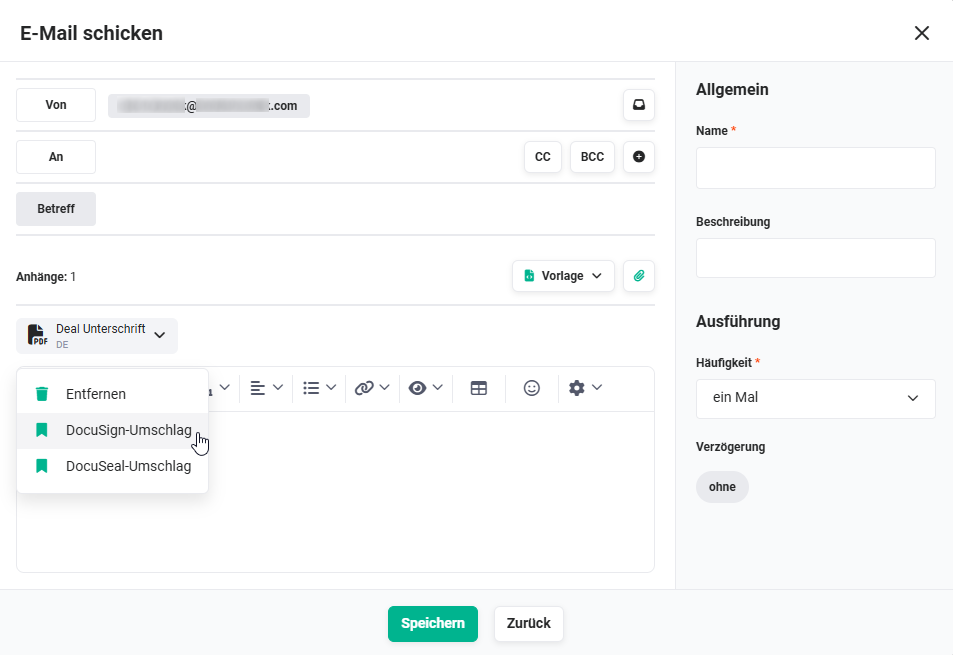 Action Send email - select envelope
After clicking the attachment, a flyout menu opens, in which the envelope can be selected, or the attachment can also be removed again if required.
Once an envelope has been selected by clicking, it is displayed as an attachment in the “Send email” popup.
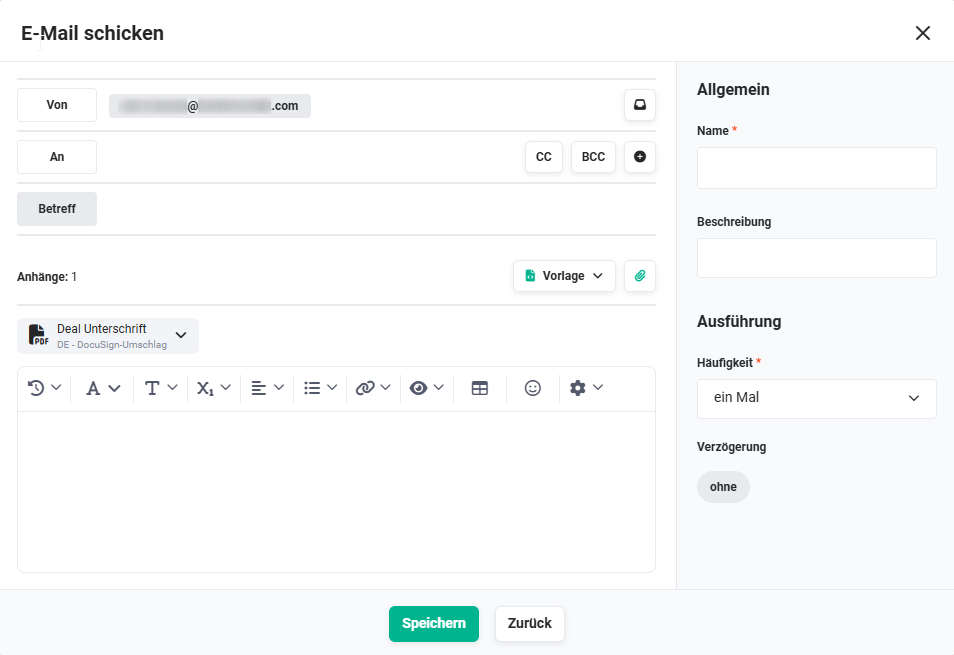 Action Send email - envelope selected
In the “To” field, the recipients who are to sign the envelope digitally must now be selected.
If the “Signature” placeholder was used in the PDF template, the number of recipients (“To” field) must necessarily match the number of “Signature” placeholders!
In the “CC” field, the recipients who are only to view the envelope are selected.
The “Subject” field is a mandatory field and must likewise be filled. In the “Subject” field, variables/field placeholders can be used - as also in the email body.
2.2.3.6.2. Execute action after signing of envelope
When creating an Automation, the event “DocuSign: Signature received” or “DocuSeal: Signature received” is available for triggers - depending on which provider is used for the digital signature.
The event “Signature received” offers the possibility, after the signing of the envelope, for example to send emails automatically, or to create a record in the Tasks module.
For triggers for digital signatures, conditions can be defined on line items of Billing records (e.g. Invoices, Sales Orders). Thus, the further course of an automation can be controlled depending on fields or values of individual line items of the associated record.
DocuSeal communicates with brainX via a push mechanism that internally uses the brainX API. In order for triggers that are related to DocuSeal to be addressed correctly, the value “API” must be activated in the “Also for changes via” field for every affected trigger - including all chained subsequent triggers.
If this setting is not set, the trigger is not triggered by the DocuSeal push, even though the event (e.g. “DocuSeal: Signature received”) has arrived correctly.
Detailed information on the configuration options of triggers, conditions and actions is available in the section Automations.
3. DocuSeal
The prerequisite for using the DocuSeal integration is an active, fully-fledged account at DocuSeal.
A trial/test account at DocuSeal is not sufficient!
The DocuSeal integration enables the use of a digital signature in PDF files that are generated by means of PDF Templates.
The DocuSeal integration can be used in all modules in which a PDF export is possible. In particular, the modules Sales Orders, Deals, Documents, Credits, Invoices, Cancellations and Contracts are ideally suited for the use of a digital signature.
3.1. Configuring DocuSeal
3.1.1. Authentication
If several Organizations exist and the Digital Signature is to be used in several or all Organizations, the authentication must be carried out per Organization!
Digital Signature - available providers
After clicking the “DocuSeal” tile, the “Authentication” popup is displayed.
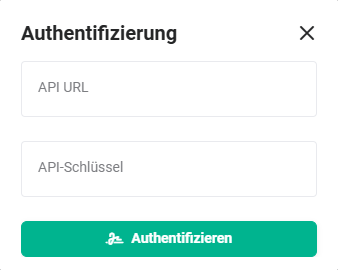 Popup Authentication DocuSeal
After entering the API URL and the API key as well as clicking the “Authenticate” button, the “DocuSeal” integration is authenticated and ready for use.
3.1.1.1. User authentication
brainX users who wish to send an envelope for digital signature out of brainX do not require any additional authentication!
However, further authentications by brainX users are possible in order to optionally assign the DocuSeal templates module by module to specific users. For further information, see section Module assignment.
In My Preferences - Integrations tab, users can authenticate at DocuSign.
After clicking the “DocuSeal” tile in the “Available integrations” area, the “DocuSeal Authentication” popup is displayed.
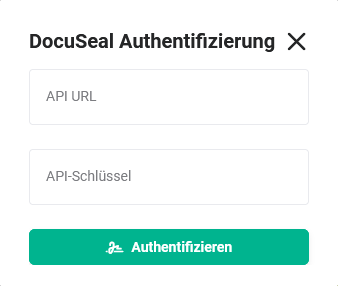 Popup DocuSeal Authentication
After entering the API URL and the API key as well as clicking the “Authenticate” button, the user is authenticated and the “DocuSeal” tile is now located in the “Active integrations” area.
After clicking the “DocuSeal” tile again, the “DocuSeal” popup is displayed.
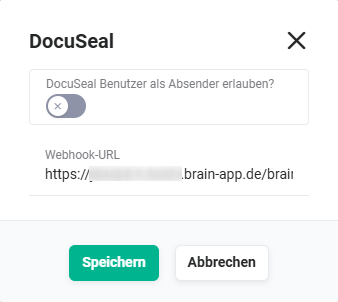 Popup Allow DocuSeal user as sender
Once the switch has been set to “active” and the “Save” button has been clicked, the user can be selected in the Module assignment among the users.
3.1.2. Module assignment
brainX users who wish to send an envelope for digital signature out of brainX generally do not require any additional or own authentication. However, should users additionally authenticate, this offers the possibility to assign these users to selected modules.
The module assignment of the DocuSeal integration is identical to the module assignment of the DocuSign integration.
For detailed information on the module assignment of DocuSeal, see section DocuSign - Module assignment.
3.2. Using DocuSeal
3.2.1. General
In principle, the “DocuSeal” integration enables the generation of a PDF file directly from a record from the modules Sales Orders, Deals, Documents, Credits, Invoices, Cancellations and Contracts, which is then sent as a so-called “envelope” directly by email to the customers.
The use of the DocuSeal integration is identical to the use of the DocuSign integration.
For detailed information on the use of the DocuSeal integration, see section DocuSign - Use.
3.2.2. PDF Templates
With the activation of the “DocuSeal” integration, the placeholder “Digital Signature” is available in the editing mode of PDF templates.
The use of the PDF templates of the DocuSeal integration is identical to the use of the PDF templates of the DocuSign integration.
For detailed information on the use of the PDF templates of the DocuSeal integration, see section DocuSign - PDF Templates.
3.2.3. Creation and sending
The creation and sending of PDF files/envelopes of the DocuSeal integration is identical to the creation/sending of PDF files/envelopes of the DocuSign integration.
For detailed information on the creation/sending of PDF files/envelopes of the DocuSeal integration, see section DocuSign - Creation and sending.
4. Practical examples
1 - Send quotation digitally for signature
Initial situation: A sales representative has recorded a quotation as a deal in brainX and would like to send it to the customer for digital signing - without printing, postal dispatch or rescanning.
Procedure: In the record of the Deals module, the switch Use for DocuSign/DocuSeal envelope is activated via the PDF export. A PDF template with the Signature placeholder is selected. In the Edit envelope popup, the referenced contact is confirmed as the recipient and the envelope is sent directly to the customer with a click on Send.
Result: The customer receives an email with the quotation and can sign it digitally on any device - without their own account at the signature provider. The signed PDF file is automatically referenced in brainX.
2 - Automatically trigger subsequent actions after contract signing
Initial situation: After the digital signing of a contract, a task for order processing is to be created automatically and a confirmation email is to be sent to the customer.
Procedure: In the automations, a trigger with the event DocuSeal: Signature received (or DocuSign: Signature received) is configured. As actions, Create record (task) and Send email (confirmation) are stored. For DocuSeal, the value API is activated in the Also for changes via field.
Result: As soon as the customer signs the contract digitally, all subsequent steps run automatically - without manual intervention by the sales representative.
3 - Envelope sending via automation on deal status change
Initial situation: If a deal changes to the status Quotation sent, the quotation is to be sent automatically as a digital envelope to the stored contact.
Procedure: An automation is configured with the trigger Record changed in the Deals module and the condition Status = Quotation sent. As the action, Send email with a PDF template as the envelope is stored. In the To field, the referenced contact of the deal is set as the recipient. The option Every time in the Frequency setting item is not used.
Result: The envelope is sent automatically as soon as the deal status is set. Manual steps for the sending are completely eliminated.
4 - Send contract with several signers
Initial situation: A framework agreement must be signed digitally both by the customer and by an internal authorised representative.
Procedure: In the PDF template, separate Signature placeholders are inserted for each signer (one placeholder per recipient). When sending the envelope, two recipients with the function Must sign are entered in the Edit envelope popup. Both receive the envelope by email and sign independently of each other.
Result: Both parties sign the contract digitally - fully legally compliant and without physical documents. The fully signed document is available in brainX as a PDF.
5. Frequently asked questions
Do recipients of an envelope need their own account at DocuSign or DocuSeal?
No, recipients can sign an envelope digitally without having their own account at the respective provider. In this case, however, they cannot archive the signed envelope at the provider itself. The signed document is nevertheless available for download in brainX.
What is the difference between DocuSign and DocuSeal in brainX?
The range of functions and the operation of both integrations within brainX are almost identical. DocuSign is an established commercial market leader. DocuSeal is an open-source alternative that can also be self-hosted. Notifications in brainX are displayed for both providers – for a viewed, signed or declined envelope.
Via which channel is the envelope sent to the recipient?
The sending takes place directly via the respective provider (DocuSign or DocuSeal) - not via the central mail server or an email account in brainX. A configured email account is not required for the envelope sending.
Can I set an expiry date for an envelope?
Yes, when creating an envelope, an expiry date up to which the envelope can be signed digitally can optionally be set. For records from the Deals module, the stored validity period is automatically preselected. If no date is set, the default value configured in the provider's account applies.
What happens if a recipient declines the signing?
The recipient can decline the signing and optionally give a reason for the decline. In brainX, the reason for the decline is displayed in the Envelope for digital signature block in the Reason for decline field. The date of the decline is likewise stored in the block.
Why is a DocuSeal trigger in an automation not triggered?
DocuSeal communicates with brainX via the API. In order for triggers to be addressed correctly, the value API must be activated in the Also for changes via field for every affected trigger - including all chained subsequent triggers. If this setting is not set, the trigger is not triggered by the DocuSeal push, even though the event has arrived correctly.