
Tab Information
Package: BASIC
1. General
The structure of the detail view is the same or very similar in most modules (exceptions here are, for example, modules such as Reports, Email accounts or Templates).
The detail view of a record is divided into three tabs in its presentation:
- Information → Display of the fields grouped in blocks as well as various actions
- Relations → Display of linked (referenced) records grouped in blocks as well as various actions
- Dashboard → Display of freely configurable widgets
The detail view in the Information tab is fundamentally divided into several "blocks". A "block" is generally a summary of several thematically related fields.
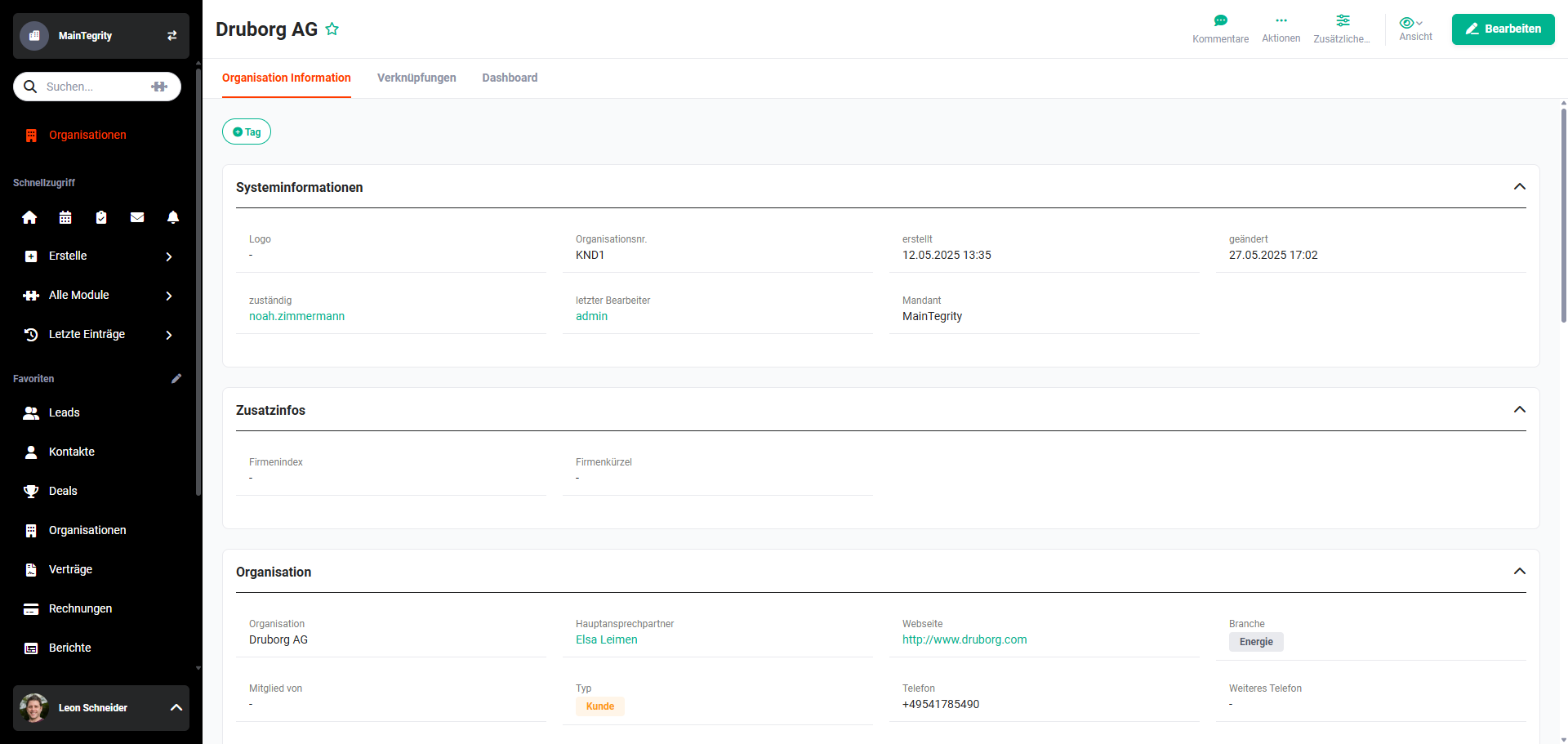 Detail view - Information tab
2. Views
Individualised views can be created in the detail views, in which it is defined precisely which fields/blocks are displayed/not displayed and how they are positioned.
Individualised views can be configured in Global Settings - Organization management - Layout.
You can switch between views using the Views button.
3. Blocks and Fields
The following descriptions are based on the view "Standard".
Due to the possible individual configuration options for views, self-created views may have a completely different configuration.
3.1. Blocks
The detail view in the Information tab is fundamentally divided into several "blocks". A "block" is generally a summary of several thematically related fields.
Blocks can be "hidden/collapsed" in a view using the "hide" action icon (icon "angle bracket pointing up") - which is positioned in the top right corner of each block.
3.1.1. System Information Block
The "System information" block is present by default in almost all modules.
By default, the block contains the following fields:
- Record no. → internal system record number (e.g. Contact no., Organization no.). The numbering can be individually set in Global Settings - Basic Setup - Company information - Record numbers.
- responsible → User or group responsible for the record.
- created → Date and time when the record was created.
- modified → Date and time when the record was last modified (see also the section Change tracking). The "modified" field is only updated when a field in the record has actually changed.
- last editor → User or group who last edited the record.
3.1.2. Module Fields Block
The "Module fields" block is generally named after the respective module, for example "Contact", "Organization" or "Lead".
This block generally contains the "main information" of the record.
In the [Contacts]() module, these are, for example, fields such as salutation, first name, last name, organisation, email, direct phone, mobile, etc.
3.1.3. Address/Delivery Address Block
The "Address/Delivery address" block is present by default in the following modules:
- Contacts
- Organizations
- Leads
- Partner
- Vendors
- Sales Orders
- Purchase Orders
- Deals
- Credits
- Cancellations
In the Contacts, Organizations, Leads and Partner modules, the "Show address on map" button is available in the "Address" block.
After clicking the button, a flyout menu opens in which you can select whether the billing address or delivery address should be used.
After selecting the address to be used, the "Google Maps" popup window opens, in which the address is displayed on the Google Maps map.
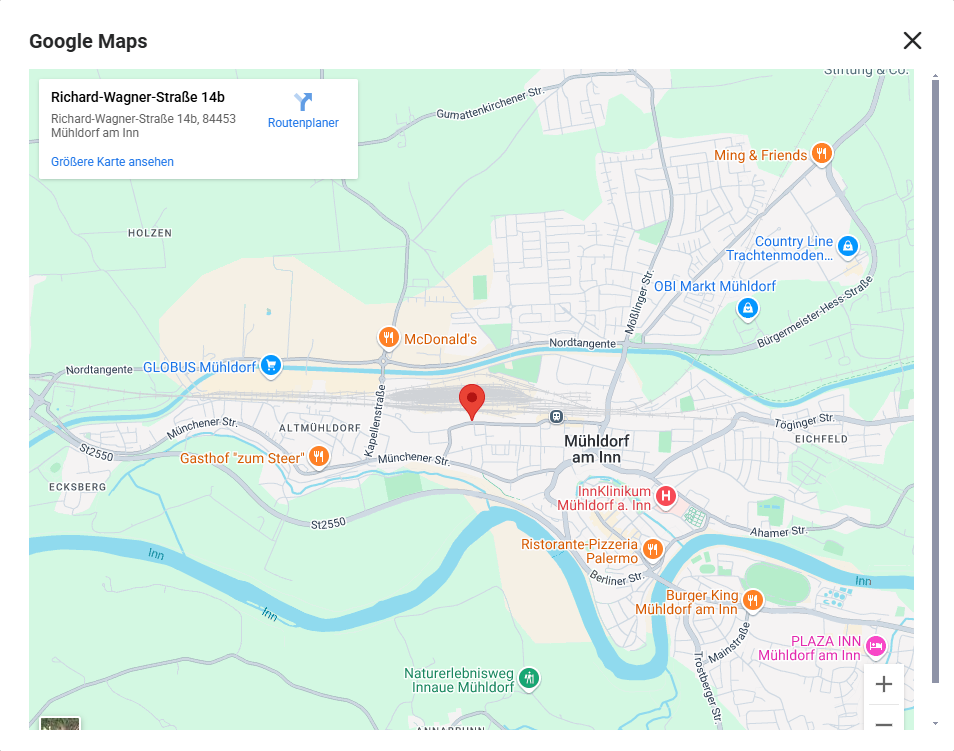
3.1.4. Further Blocks
Depending on the respective module, further blocks are available in the "Standard" view, such as:
- Additional information
- Bank details
- Organisation-related data (Contacts module)
- Forecast (Deals module)
- Item group (see Product block in Billing modules)
3.2. Fields
Data is displayed in the fields themselves. There are a multitude of different field types:
- Text → Standard text field
- Number → Field for numeric values, decimal places possible
- Percent → Field for percentage values
- Currency → Field for selecting currencies (see Organization management - Basic Setup - Currencies)
- Date: Field for date values
- Email → Field for email addresses (checked for correctness or syntax during the save process and displayed as a hyperlink)
- Phone → Field for phone numbers (displayed as a hyperlink as soon as the telephony is connected to brainX (see Organization management - Special module settings - Connect)
- Fax → Field for fax numbers (displayed as a hyperlink as soon as the telephony is connected to brainX (see Organization management - Special module settings - Connect)
- Picklist → Field with defined picklist values (see Organization management - Layout - custom fields)
If colours are configured for the picklist values, these are also displayed outside the detail view – e.g. in the Relations tab of linked records as well as in selection popups. - Reference → Using a field of the field type "Reference", existing records from other modules can be selected and thus references (links) to other modules can be established
- URL → Field for a URL/web address (displayed as a hyperlink)
- Checkbox → Switch/checkbox with values yes/no or ticked/not ticked
- Text Area → Unlike the "Text" field type, the Text Area field type is not limited to a maximum of 100 characters, but can process and store significantly more characters.
Depending on the configuration, HTML formatting of the text is also possible (supports, among other things, tables as well as the configuration of the bullet style and the start value of numbered lists). - Multi-Select Box → Identical to the "Picklist" field type, but with the difference that several picklist values can be selected simultaneously.
- File → The field allows files to be uploaded to the brainX system
- User selection → Field for selecting (active) brainX users/groups. Fields of the User selection type display the profile picture of the user in addition to the name – provided one is stored. If no profile picture is available, the initials are displayed.
Note: Fields of the type User selection are empty by default – no user is preselected. Exception: the field responsible, which is automatically prefilled with the currently logged-in user when a record is created.