
PDF Templates
Package: BASIC
1. General
With PDF Templates, templates for PDF export can be created for almost all modules. This makes it easy, for example, to generate Invoices or Deals as a PDF file and then save, print or send them by email.
A company creates a PDF template for the Invoices module. In the layout, the company logo, address fields and a line item group with placeholders from the product block are inserted. For Swiss customers, the QR bill field is additionally activated.
A sales employee wants to export quotations as a PDF. He creates a PDF template for the Deals module, adds a header and footer template with page numbering and sets the template as the default template for this module.
2. Layout - Functional Areas
The create view of a PDF template is divided into the Details and Layout tabs.
In the Details tab, the basic details of a template are defined or displayed - see section Templates - Detail View.
In the Layout tab, the PDF template itself is configured. The Layout tab is divided into several functional areas.
- Editor Toolbar
- Switching the Template
- Language
- Preview
- Document Settings
- Watermark
- PDF as Template
- Export File Name
- Placeholders
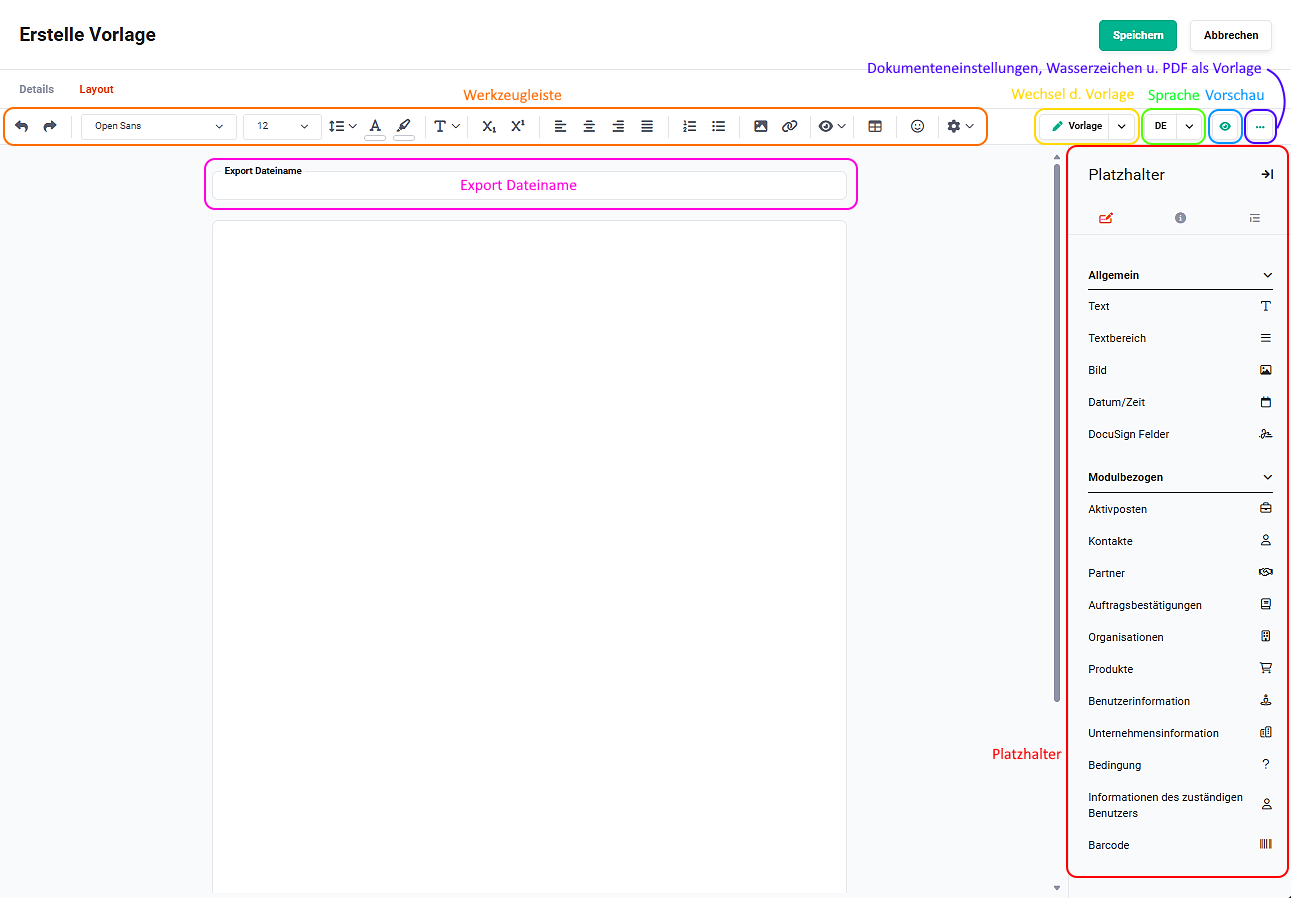 functional areas of the Layout tab
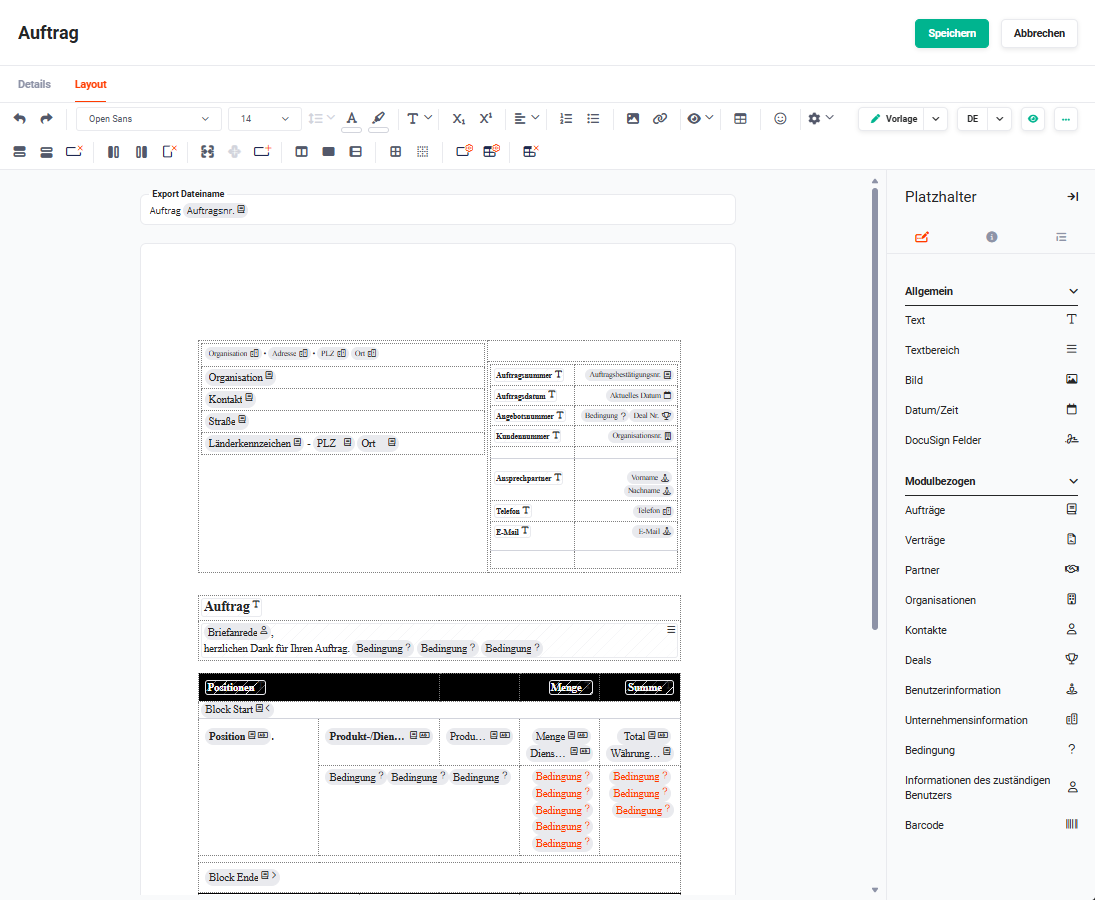
2.1. Editor Toolbar
The editor toolbar offers all functions for text formatting (e.g. font and size, lists, inserting images and links, tables, etc.).
2.2. Switching the Template
After clicking the "Template" button, a flyout menu is displayed, which allows switching between the PDF template itself and the header and footer.
The header and footer are areas at the top and bottom of a page that can contain information such as the document title, the date, the author or a page number. They appear on every page of the document.
In the header and footer - just as in the PDF template itself - placeholders can be used.
To have consistent headers in all PDF templates, header and footer templates can be created, which can be loaded during the PDF export.
2.3. Language
The "Language" button offers the possibility to switch between different languages, if the template is to be created in multiple languages.
Texts entered directly in the layout cannot be translated. For multilingual templates, the placeholders "Text" and "Text area" from the Single Fields → General tab must therefore be used without exception. In the "Link data" step, the desired text per language can be stored for these placeholders.
When exporting a PDF from the detail view of a record, the language of the respective record is always used for multilingual templates.
2.4. Preview
The "Preview" button offers the possibility to get a first preview of the template.
After clicking, the placeholder icons are hidden. Clicking the button again shows the placeholder icons again.
2.5. Document Settings
After clicking the "three dots" button (further settings), a flyout menu is displayed in which the following settings can be selected:
- Document Settings
- Watermark
- PDF as Template
- Attachments
After clicking the "Document Settings" action, a sidebar is displayed in which all document settings can be configured.
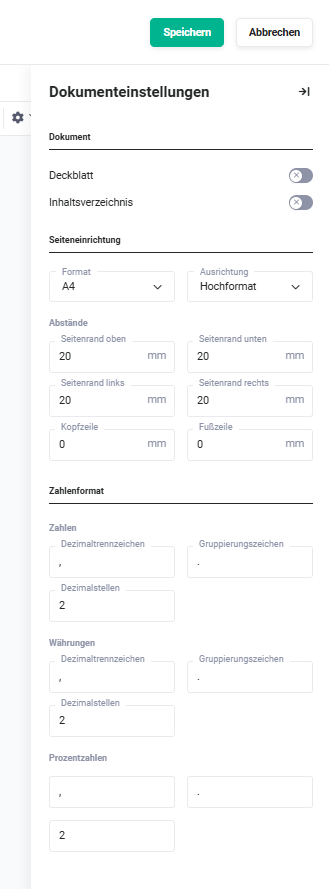 Document Settings sidebar
The document settings are grouped into three areas:
2.5.1. Document
Cover page: Setting (toggle) whether the cover page is displayed on export.
The cover page offers the same functions as the template itself. All placeholders of the template are also available on the cover page.
Table of contents: Setting (toggle) whether the table of contents is displayed on export.
If it is activated, the "Settings" link appears, via which the font, size, colour and formatting can be defined for each level.
The table of contents is generated automatically from the headings of the layout. The prerequisite is that the headings are entered directly in the layout - headings within tables or other elements are not taken into account.
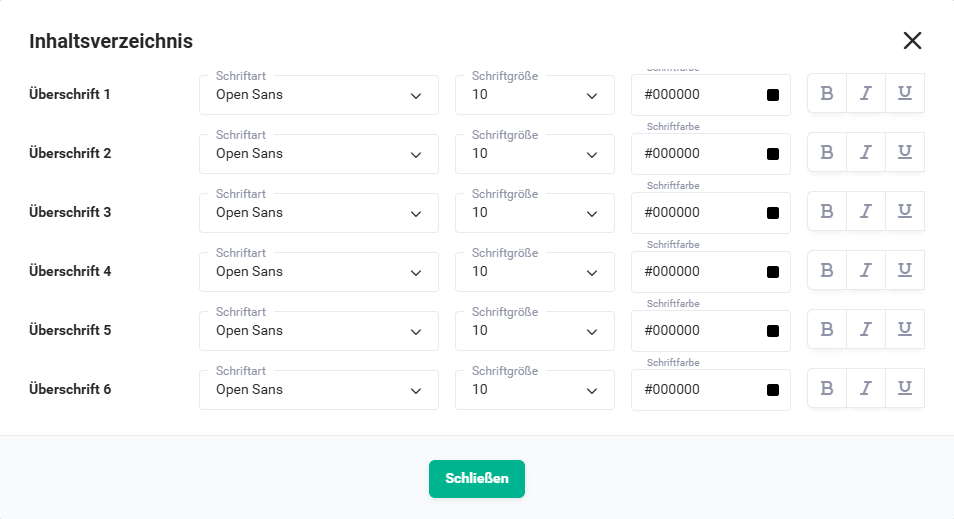 Table of contents popup
For each level of the table of contents, which is created automatically from the headings of the layout, font, size, colour and formatting can be defined.
2.5.2. Page Setup
In the settings items of the page setup, the following settings can be configured:
- Format → format of the PDF file (A3, A4, A5, A6, Letter and Legal)
- Orientation → orientation of the PDF file (portrait/landscape)
- Margins → definition of the page margins (top, bottom, left and right) as well as the height of the header and footer
2.5.3. Number Format
When outputting numbers, they can be displayed differently in the PDF file than they are stored in brainX. The following settings can be configured:
- Numbers → definition of decimal, grouping characters and decimal places
- Currencies → definition of decimal, grouping characters and decimal places
- Percentages → definition of decimal, grouping characters and decimal places
2.6. Watermark
After clicking Watermark in the flyout menu (three dots button), a sidebar is displayed in which all settings for a watermark can be configured. For the watermark, you can choose between an image and text. With the help of the settings (size, transparency and rotation), the watermark can be configured individually.
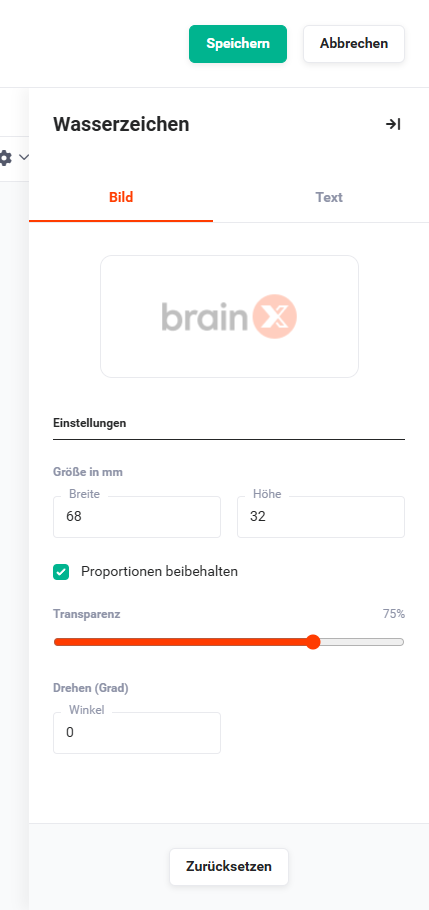 Watermark image
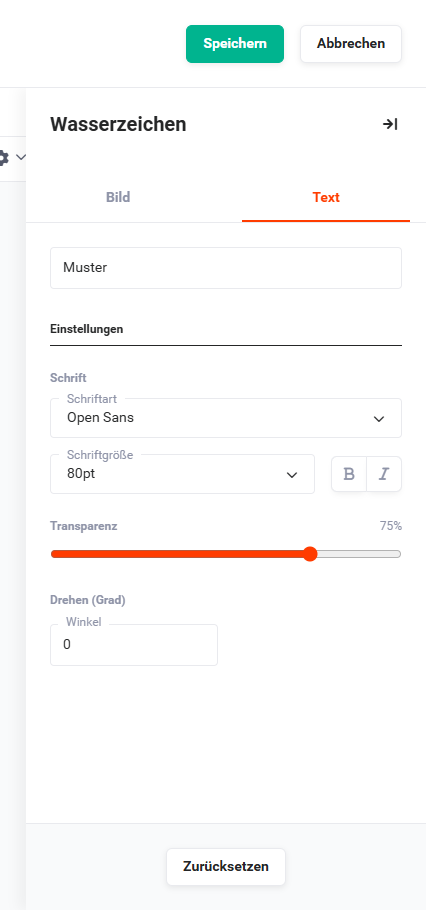 Watermark text
2.7. PDF as Template
After clicking PDF as Template in the flyout menu (three dots button), a sidebar is displayed in which a PDF can be uploaded as a template.
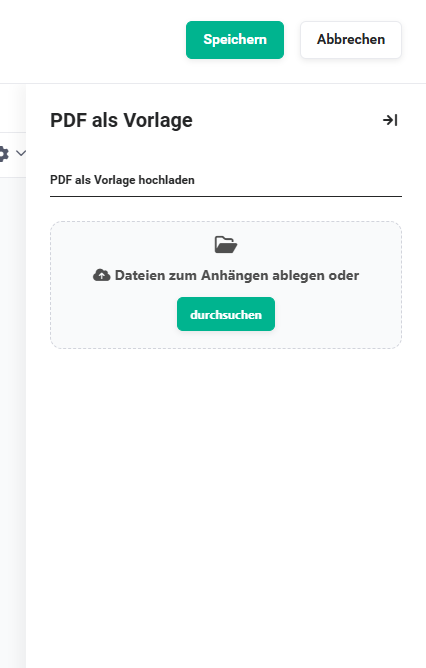 PDF as Template sidebar
Instead of inserting background images in the header and/or footer, there is also the option to store a PDF file as a template. As with letterhead, the template is applied to every page of the export (incl. cover page and table of contents). The PDF file of the template can have any number of pages.
A special case occurs when the PDF template contains fewer pages than the later export – in this case, the last page of the PDF template is used on all following pages. In the simplest case, the file consists of one page that is used on every page of the export.
If a PDF file is used as a template in combination with the table of contents, note that the table of contents is technically always generated last and moved to the beginning. This means the table of contents receives the background of the PDF template that is found on the last page of the export.
2.8. Export File Name
In the Export File Name field, the name used by default that the generated PDF file will receive is entered. To customise the file name, placeholders (e.g. the invoice number) can be used.
2.9. Placeholders
In a PDF template, various types of placeholders can be used. These are replaced by the corresponding values from the records when the PDF file is generated.
Placeholders are distinguished between three categories:
In the "Placeholders" sidebar, these three categories are divided into corresponding tabs, between which you can switch at any time.
2.9.1. Single Fields
Single fields are divided into the "General" and "Module-related" areas.
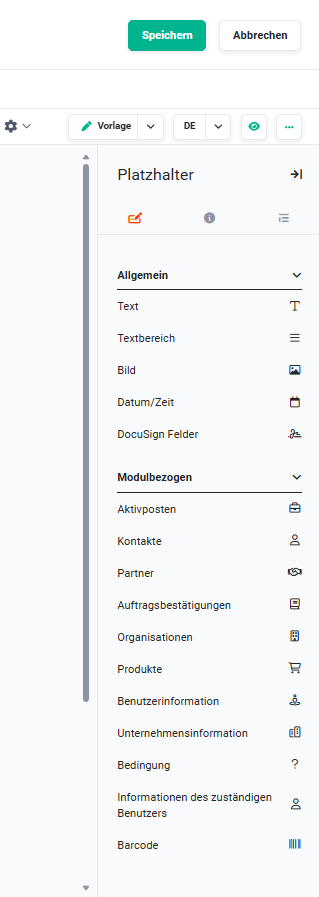 Placeholders sidebar - Single Fields tab
2.9.1.1. General
The general fields include:
- Text → entry of text
- Text area → entry of multi-line text
- Image → inserting an image, dimensions of the image can be defined after uploading
- DocuSign/DocuSeal fields → fields of the Digital Signature integration
- Date/Time → current date with optional display of the time
- Form field → inserts a fillable field into the PDF template (Text, Text area, Checkbox or picklist); the label, default value, mandatory field option and optionally a field assignment including pre-filling can be configured
When using form field placeholders, the PDF export generates a fillable PDF document. If the PDF file is sent via DocuSeal or DocuSign, the recipient fills in the form fields directly when signing; the values of assigned fields are then automatically transferred into the record.
2.9.1.2. Module-related
In the "Module-related" area, both placeholders for fields of the main module and placeholders of referenced modules are available.
The module-related fields include:
-
Module fields → fields of the main module as well as records related/referenced to the main record
Note: Module fields of the type URL can be configured with an alternative text. Instead of the full URL, the configured text is displayed as a clickable link in the PDF document. The configuration is carried out after inserting the placeholder via the Link data step. -
User information → fields from the user information; on export, this placeholder is replaced with the values of the currently logged-in user
-
Company information → fields from the company information
-
Condition → allows a value to be set depending on another value
Note: In the Deals module, two additional fields are available for conditions:- Number of alternative line items
- Number of optional line items
-
This allows blocks or content in the template to be shown or hidden depending on the line item constellation of the deal. These fields are also available in list views, Reports and Automations.
Formatting options for output values (e.g. date format, currency format, alternative link text for URL fields) can also be defined for fields that are inserted into the template via a condition. The configuration is carried out in the Link data step of the respective placeholder.
For line items in Billing modules, the Discount type field is additionally available as a condition field. This can be used to control whether a block or content is shown or hidden in the template depending on the discount type of a line item – e.g. with discount tiers. -
Information of the responsible user → fields from the user information; on export, this placeholder is replaced with the values of the responsible user
-
Signature → inserts the signature stored in the user profile (see My Preferences - Additional Settings).
When inserting the placeholder, you can choose which signature is used:
- responsible user of the record → the signature is dynamically drawn from the responsible user stored in the record
- fixed user → the signature of a specific, fixed selected user is always used, regardless of the record's responsible user
Note: The signature stored in the user profile should already be uploaded in the required size to avoid unwanted scaling in the PDF export.
- Barcode → allows the generation of barcodes for various standards, e.g. EAN-13
In order to quickly assign the placeholders visually, the respective icons of the module are additionally displayed.
After inserting a placeholder into the PDF template, the corresponding field from this module can be selected by clicking the placeholder.
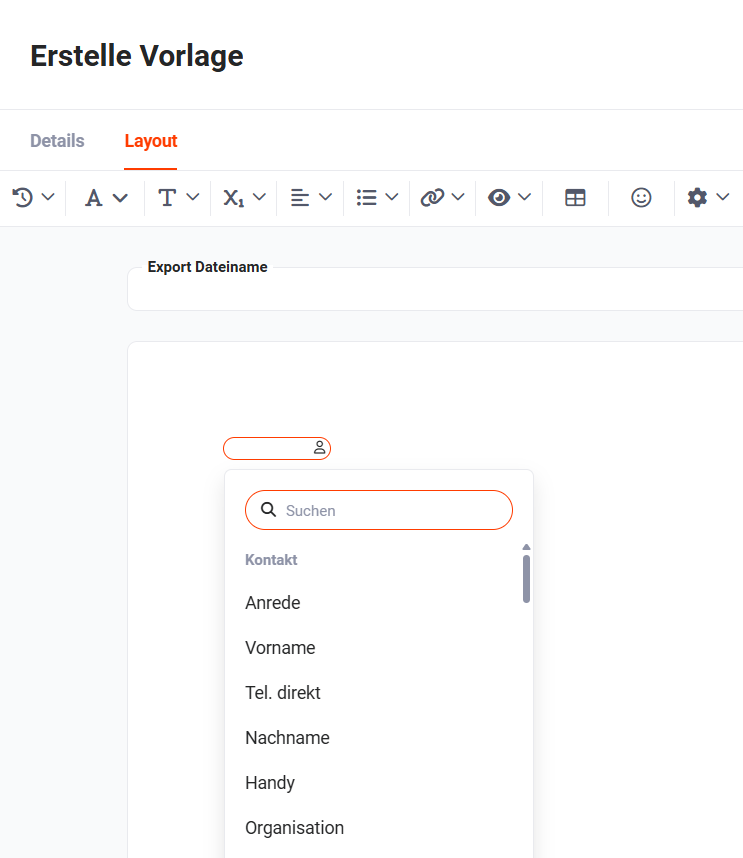 Module-related placeholder for the Contacts module
2.9.2. Links
In the "Links" tab, placeholders of referenced modules/records are available, which are listed in the Relations tab in the detail view of the record of the main module.
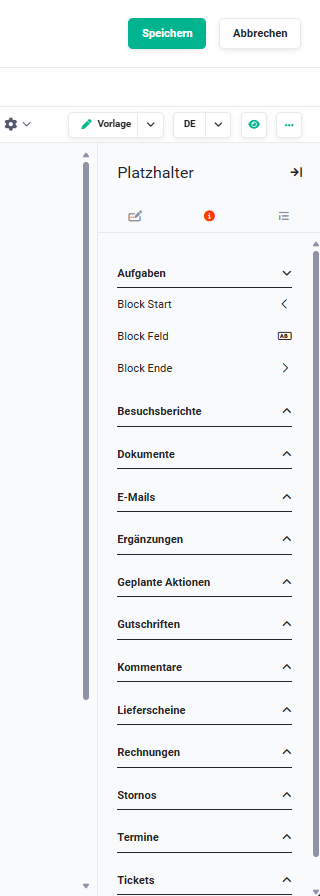 Placeholders sidebar - Links tab
For each module that is listed in the Relations tab of the main record, three placeholders exist (Block Start, End and Fields). If placeholders of the More Information of a record are used and the respective block is empty, the area can be hidden from the template, as long as tables are used.
Within a block for Links, any placeholders from the General, Fields and Symbols categories can also be used.
2.9.3. Custom Blocks
Custom blocks are used to insert the line items of the product block from the Sales Orders, Deals, Purchase Order, Credits, Invoices and Cancellations modules into a template.
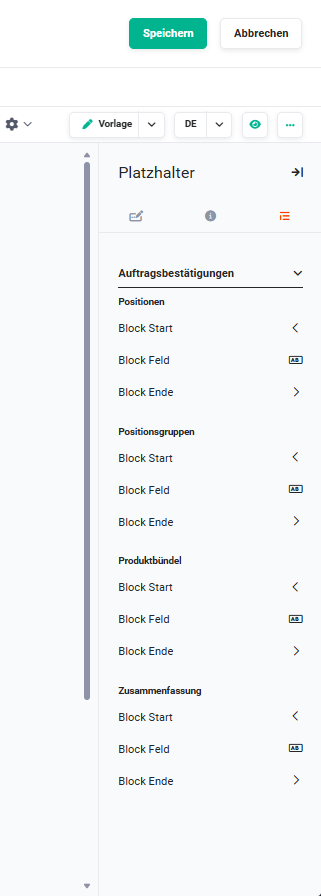 Placeholders sidebar - Custom Blocks tab
The following custom blocks are generally available:
- Line items → Block Start, Field and End for line items
- Line item groups → Block Start, Field and End for line item groups
- Product bundles → Block Start, Field and End for product bundles
- Discount tier → Block Start, Field and End for discount tier
- Summary → Block Start, Field and End for summary
Within the "Summary" block, cumulative tax placeholders are additionally available. These enable the aggregated output of taxes over a monthly or yearly period – relevant e.g. for contract billing.
For the Invoices, Credits and Cancellations modules, placeholders for the sums of down payments made are additionally available:
- Subtotal (down payments)
- VAT (down payments)
- Gross (down payments)
2.10. Attachments
After clicking Attachments in the flyout menu (three dots button), a sidebar is displayed in which one or more PDF files can be uploaded as attachments. The attached PDF files are appended to the end of the generated document on export.
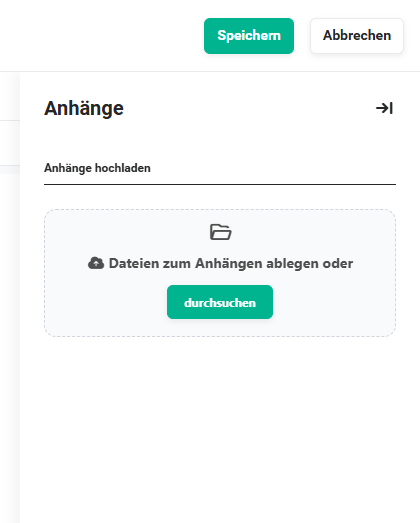 Attachments sidebar
Only PDF files are supported as attachments.
3. Practical Examples
1 – Invoice template with company logo, address block and product line items
A company wants to export invoices as a professional PDF. In the Templates module, a new PDF template is created for the Invoices module. In the Layout tab, the header is first switched to via the Template button: There, the company logo is inserted as an image and a header template is linked, which appears on all pages. Then the switch back to the actual template is made.
In the layout, the placeholders for the invoice recipient (name, address) as well as invoice date and invoice number are inserted from the Single Fields → Module-related tab. For the line items, the Line items block (Start, Fields, End) is embedded in a table in the Custom Blocks tab, so that each invoice line item is displayed in its own row. In the Summary block, the net, VAT and gross amounts are output.
In the Export File Name field, the placeholder for the invoice number is entered, so that the generated PDF file automatically receives the appropriate name. The template is finally set as the default template for the Invoices module.
2 – Multilingual quotation template (German/English)
A sales employee creates a PDF template for the Deals module that can be output in both German and English. Since directly entered texts in the layout cannot be translated, only placeholders of the type Text from the Single Fields → General tab are used for all language-dependent labels (e.g. "Angebot" / "Quotation", "Gültig bis" / "Valid until").
After inserting each text placeholder, the German text is stored for the language German and the English text for the language English in the Link data step. Via the Language button in the layout tab, you can switch between the language versions at any time and check the display. On PDF export, the user selects the desired language, and the template is filled accordingly.
3 – Letterhead background via "PDF as Template"
Instead of manually inserting background images in each header and footer, a company stores its own letterhead as a PDF file directly in the template. In the flyout menu (three dots button), PDF as Template is selected and the single-page letterhead PDF is uploaded. Since the letterhead has only one page, this layout is automatically applied to all subsequent pages of the export.
The actual template layout is limited to the content placeholders (address block, line items, totals), without background design – this comes entirely from the stored letterhead. The result is a consistent appearance on all export pages that can be maintained independently of the template content.
4 – Conditional content depending on the discount type (Deals)
A company uses both regular discounts and discount tiers in the Deals module and wants to output different text blocks in the PDF template depending on the discount type. To do this, a placeholder of the type Condition is inserted in the Single Fields → Module-related tab. Discount type is selected as the condition field.
In the Link data step, two cases are defined: If the discount type is discount tier, an explanatory note text about the tiering is displayed; in all other cases, the area remains empty. In addition, the fields Number of alternative line items and Number of optional line items are available as conditions to show or hide entire blocks for certain line item constellations.
5 – Export template with table of contents for extensive documents
For the Projects module, a PDF template with an automatic table of contents is created. In the layout, the various sections (e.g. project description, milestones, appendix) are captured with headings directly in the editor – not within tables, as these are not taken into account for the automatic table of contents.
In the Document Settings, the table of contents is activated. Via the Settings link, the font, size and formatting are defined for each level. The table of contents is generated automatically on export and placed at the beginning of the document.
4. Frequently Asked Questions
Why do my headings not appear in the table of contents?
The automatic table of contents only takes into account headings that were entered directly in the layout. Headings within tables or other embedded elements are not captured. In addition, the table of contents must be activated in the Document Settings.
How do I create a multilingual PDF template?
Texts entered directly in the layout cannot be translated. For multilingual templates, all language-dependent content must be inserted via placeholders of the type Text or Text area (Single Fields → General tab). In the Link data step, the desired text per language is stored for each placeholder.
What is the difference between a header template and the "PDF as Template" feature?
A header template defines a reusable header or footer area that can be included in several PDF templates. PDF as Template, on the other hand, stores a complete PDF file (e.g. letterhead) as a background that is applied to every page of the export – including the cover page and table of contents.
Why does the table of contents have a different background than the rest of the pages when I use "PDF as Template"?
The table of contents is technically always generated last and then moved to the beginning of the document. It therefore receives the background of the PDF template that is stored on the last page of the export. If the letterhead has only one page, the background is identical on all pages and this problem does not occur.
How can I automatically fill the file name of the exported PDF file?
In the Export File Name field in the Layout tab, placeholders from the module can be used. This allows, for example, the invoice number or the customer name to be defined as part of the file name. The file name is automatically filled from the respective record on export.
Can attachments also contain module-specific documents, or only static files?
Via the Attachments function (flyout menu, three dots button), only static PDF files can be uploaded, which are attached on each export. Dynamic attachments from records (e.g. linked documents) are not supported via this function.
What happens if my "PDF as Template" has fewer pages than the export?
In this case, the last page of the stored PDF template is used on all further export pages. In the simplest case – and the most common use case – the letterhead consists of exactly one page that is automatically applied to all pages of the export.
How do I insert placeholders from linked modules (e.g. Contacts to an invoice)?
Linked modules are available in the Links tab of the placeholder sidebar. For each module that is listed in the Relations tab of the main record, block start, block end and field placeholders are available. Within such a block, all general placeholders as well as fields of the linked module can be used.