
Currencies & Taxes
Package: BASIC
1. Currencies
Under this settings item, the following options are available:
- Edit currency (e.g. change conversion rate)
- Activate/deactivate currencies
- Delete currencies
- Create currency
In the “Currencies” area, all created currencies are listed, including the most important information (currency code, symbol, status and conversion code).
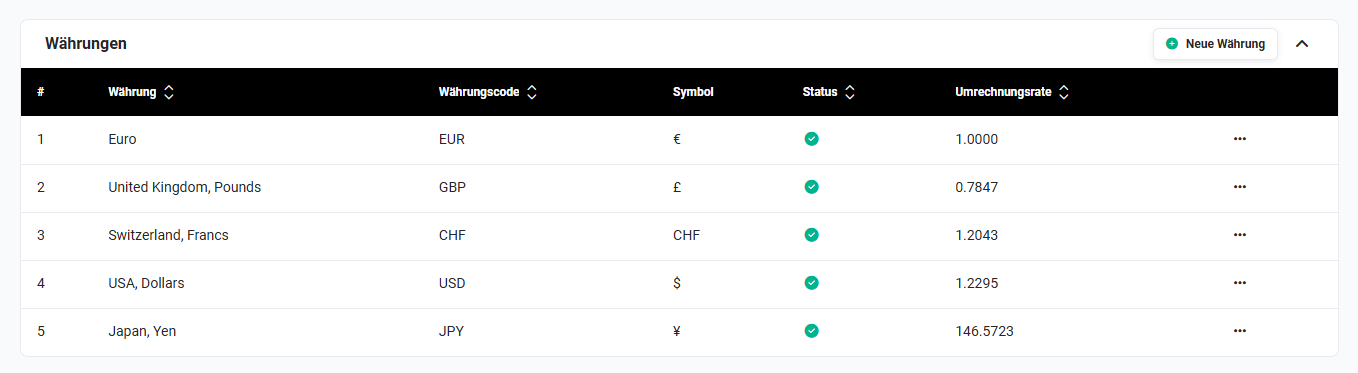 Basic Setup - Currencies
When editing and creating currencies, the following fields are available:
| Field | Description |
|---|---|
| Currency name | Picklist of the available currencies (see list below). |
| Currency code | Display of the currency code associated with the selected currency (field is filled automatically after selecting the currency). |
| Symbol | Display of the currency symbol associated with the selected currency (field is filled automatically after selecting the currency). |
| Conversion rate | Conversion factor of the selected currency relative to the base currency Euro. When using a decimal separator, a full stop must be used here. Warning The conversion rate is not adjusted automatically by the system; instead, it must be corrected manually in the currency settings whenever the exchange rate changes! |
| Alternative decimal separator | Optional decimal separator, only affects PDF Export. |
| Alternative grouping separator | Optional grouping separator, only affects PDF Export. |
| Status | Selection of whether the currency is active/inactive. |
The following currencies are available for selection:
|
|
1.1. Edit, deactivate and delete currency
After clicking the actions icon “three dots” in the row of the currency to be edited, a flyout menu opens with the actions
- Edit → After clicking the action “Edit”, the “Edit currency” popup opens, in which the fields can be edited.
- Deactivate → The currency is deactivated and is no longer available system-wide.
If a currency is already in use in brainX, it can neither be deleted nor set to inactive! - Delete → The currency is deleted and is no longer available system-wide.
If a currency is already in use in brainX, it can neither be deleted nor set to inactive!
1.2. Create currency
After clicking the “New currency” button, the “New currency” popup opens.
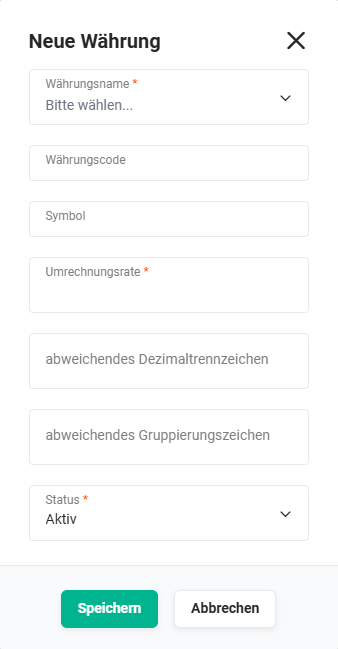 Currencies - New currency popup
After filling in the fields and clicking the “Save” button, the currency is saved and is available system-wide.
2. Tax rates
In this settings item, the default values for the tax selection can be defined and the tax rates for products/services can be created/edited/blocked.
The tax rates configured here (in %) are available system-wide as picklist values in the “Tax rate” field - e.g. when creating Products and Services as well as in the line items of the product block of the Billing modules. The tax rate defined as the default is preselected here.
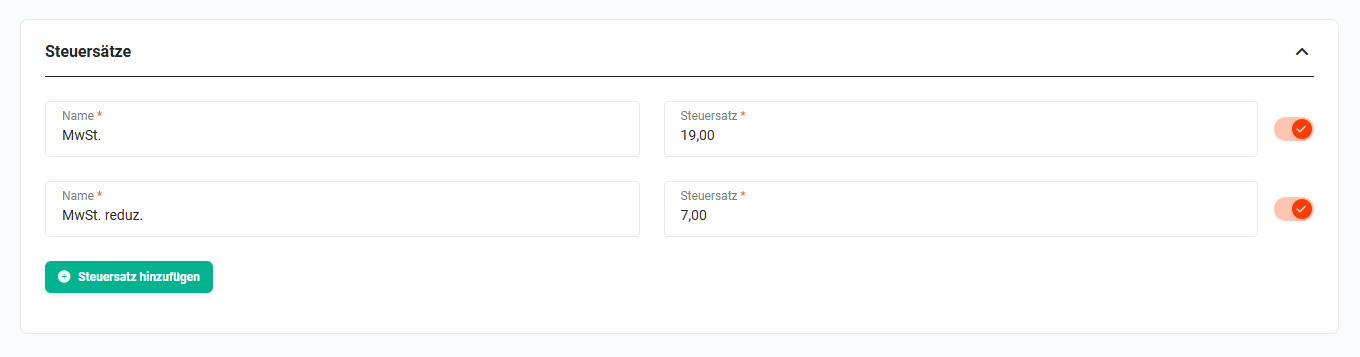 Basic Setup - Tax rates
Configuration of the taxes on products/services:
- Rename existing tax rates (“Name” field) → Changes are applied after clicking the “Save” button
- Change tax rates (“Tax rate” field) → Changes are applied after clicking the “Save” button
- Add new tax rates → after clicking the “Add tax rate” button, an additional row is displayed; changes are applied after clicking the “Save” button
- Activate/deactivate tax rates → via the toggle in the respective row
Which tax type (none, group, individual) is used when creating records can be defined in the master data of an Organization as well as directly in the product block of the respective Billing modules.